



1,660
To my fellow texture packers and ambitious Minecraft players, to whom I would like to dedicate all of my research to, so that you may be able to shape your world beyond the block, this informative tutorial is for you. ;)
But first of all, allow me to say: WELCOME! ^_^
Much of the Minecraft experience has involved a collective diversity of biomes - Jungle, Tundra, Desert, Swampland, and so on... Biomes have given the game greater depth and a refined sense of exploration and adventure. However, all of these biomes, though uniquely distinct in their technical representation, are affected by color all the same way; excluding some exceptions, such as the purple color overlay within the Swampland biome, but I'll get to that later. In this tutorial, I will show you how biome colors work and how you can change them...
How Biome Colors Used to Work:
The Minecraft Wiki offers some information as to how biomes are represented, but not the full story, not to the extent as to how they are represented on a texture-based level and the history behind it.
Before Minecraft Beta 1.8, biomes were believed to work upon a system that determined the biome and it's biome color within certain coordinates, rainfall and temperature.


While biomes were created automatically as the world generated, the biome color, however, was determined by two .png files located in the "misc" folder: grasscolor.png and foliagecolor.png. Respectively, one file represents grass color while the other represents the tree leaves color.


Given this, these texture files offered a gradience of colors that blended respectfully across the Minecraft landscape. Potentially, one can change the color of these files to create their own unique collection of seasons or other themes, and to that extent, can apply noise to these files so that the biome colors can be noisy in their own way, thus, making the biome more diverse!
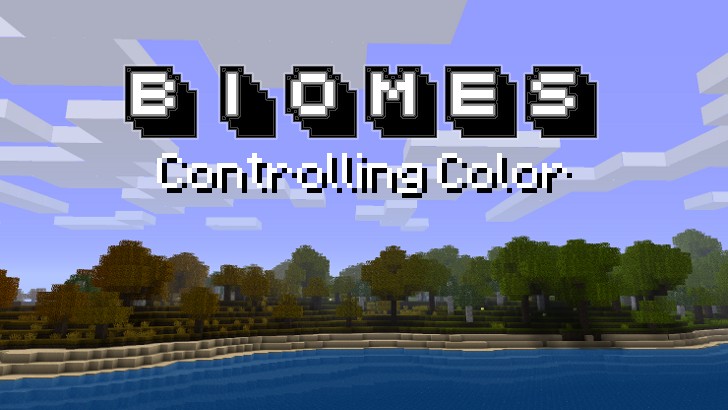
Unfortunately, all of this potential can no longer be utilized. The screenshot that is displayed at the top of this topic, with its smooth swash of color, from Savannah to Rainforest, was actually taken before Beta 1.8 was released. Many texture artists, namely ExtraNoise, author of the Quandary Texture Pack, created seasons with an astounding proficiency, but then everything changed when the Fire Nation attacked! but then the change brought with the new biomes of Beta 1.8 uprooted this potential, for some reason, and reduced it into very simple system.
How Biome Colors Actually Work:
As it turns out, after much research, biomes have been reduced to the simplest of representations, only a handful of pixels dictate the color of these biomes:

These white dots you see are the single pixels that represent specific biome colors (it sure wasn't easy for me to find them, if you can imagine). There are, in fact, 10 biomes according to the wiki. But, in actuality, there are only 9 options of color that can be diagnosed to the 10 individual biomes, specific to the landscape, excluding the color option that is only apparent for the Creative Mode grass block color and oak tree leaves block color, as that is not really a biome. The two biomes, Tundra (Ice Plains) and Taiga, actually have one color option, or pixel, that dictates their grass and foliage color.

Some of these biome color options, apply to grass/foliage color outside of what would normally be generated in the Minecraft world, as there are other color options that exist that might not be present in the image above. These pixels include the Nether, The End, and are not limited to server-specific biomes and/or mods.
Now, you may have noticed that the Swamplands are darker than most biomes, and this is due to the fact that there is a purple color overlay that affects the original chosen color. As I have tested, when the color chosen is white in the texture file, with a plain, white grass texture, the color resulting from the color overlay yields the color code: a383a3 (light purple). When the color is black with the same plain, white grass texture, the resulting color code is: 260726 (dark purple).
While there are plenty of grass and foliage textures that can be controlled by the biome wheels, the color of the tree leaves from both birch trees and pine trees are unaffected by the biome wheel entirely! Instead, they have a color overlay that will yield green regardless of the biome color.
How to Change the Biome Colors:
Step 0: Where are we? What are the limits?
There are two factors that come into play when controlling biome color:
1.) Grass and side grass terrain textures as well as tree leaves textures found in the texture file: terrain.png
2.) Biome wheels: grasscolor.png and foliagecolor.png
The limits:
1.) The foliagecolor.png follows the same format as the grasscolor.png, so texturing the upper-right triangle is unnecessary.
2.) Swampland can be affected by the biome wheel, but keep in mind that there is a purple color overlay.
3.) Birch and pine tree leaves are unaffected by the biome wheel, as they have a distinct green color overlay for each tree type, but can be influenced by the terrain textures to a certain degree.
Step 1: Getting Started!
Now, if you haven't textured before, I would recommend that you install GIMP or another decent image manipulation program of your choosing before accessing all the files necessary in order to change the biomes.
From here, open up your Minecraft like you normally would:
>Select "Texture Packs" from the main menu.
>"Open texture pack folder"
A window will pop up with the navigation chain: ...AppdataRoaming.minecrafttexturepacks
>Go back from the "texturepacks" folder to the ".minecraft" folder.
>Open the "bin" folder.
>Open the "minecraft" folder and copy all of the files that are located inside.
>Navigate your way back to the "texturepacks" folder and paste the aforementioned files.
There are a lot of files that will be present, but only some of them are texture files that you will need if you are to change the biome colors. Should you want to make a texture pack, you may want to keep the following files:
-[]achievement
-[]armor
-[]art
-[]environment
-[]font
-[]gui
-[]item
-[]misc
-[]mob
-[]terrain
-[]title
-pack.png
-particles.png
-terrain.png
-pack.txt
However, if you only plan on changing biome colors, then all you will need to keep is the "misc" folder and terrain.png.
Step 2: Making a Change.
Before you begin altering the biome color files, keep in mind that the terrain.png has a few textures that you may not be able to control the same way as other textures. Having acknowledged Step 0, the example is as follows:

The textures highlighted in red are all biome-related textures; the textures with yellow highlights indicate that they are unaffected by the biome wheel, with an exception to oak leaves, by which have the same texture as birch leaves. If desired, you can choose to lighten, darken, or colorize these textures so that they can inherit some of these changes, despite the color overlay.
Whether or not you choose to change the textures in the terrain, controlling the colors in the biome wheels are far more essential.
However way you go about coloring the grasscolor.png or foliagecolor.png, the same system applies - biome colors are determined by the color of a specific pixel, not by a gradiance of color like it used to be.


If you would like to see if my research is really true, then copy the image and paste it in your own texture files to find out for yourself. But like I said before, some biome colors like grass and foliage in the Nether, The End, or server-specific biomes may look black or gray when using this file. Other than that, I can guarantee you my data has spot-on accuracy.
Step 3: Wrapping it Up.
Of course, there would be no way of viewing your new seasonal colors and/or themed biomes without zipping them up into the proper archive.
To do this, you must right-click your window within the "texturepacks" folder and select a New > ZIP archive. Once established, give it a name if you like and drag your files into the ZIP archive. Your files will automatically be copy-and-pasted inside.
NOTE: If you are making frequent edits to your content, I would recommend placing a shortcut on your desktop, trust me. ;)
Load up your Minecraft, select your texture pack, and enjoy! That's about it... unless you want to take it to the next level! ;D
Step 4: The Next Level.
Texture Packs. Yea...
There's plenty of tutorials out there that can teach you how to become a proper texture packer. However, becoming a texture artist is something that requires much patience, a yearning to learn and improve, a willingness to try out new techniques and tools, and, most of all, a passion in doing it all - having fun is the most important part in texture packing! ^_^
But first of all, allow me to say: WELCOME! ^_^
Much of the Minecraft experience has involved a collective diversity of biomes - Jungle, Tundra, Desert, Swampland, and so on... Biomes have given the game greater depth and a refined sense of exploration and adventure. However, all of these biomes, though uniquely distinct in their technical representation, are affected by color all the same way; excluding some exceptions, such as the purple color overlay within the Swampland biome, but I'll get to that later. In this tutorial, I will show you how biome colors work and how you can change them...
How Biome Colors Used to Work:
The Minecraft Wiki offers some information as to how biomes are represented, but not the full story, not to the extent as to how they are represented on a texture-based level and the history behind it.
Before Minecraft Beta 1.8, biomes were believed to work upon a system that determined the biome and it's biome color within certain coordinates, rainfall and temperature.
While biomes were created automatically as the world generated, the biome color, however, was determined by two .png files located in the "misc" folder: grasscolor.png and foliagecolor.png. Respectively, one file represents grass color while the other represents the tree leaves color.
Given this, these texture files offered a gradience of colors that blended respectfully across the Minecraft landscape. Potentially, one can change the color of these files to create their own unique collection of seasons or other themes, and to that extent, can apply noise to these files so that the biome colors can be noisy in their own way, thus, making the biome more diverse!
Unfortunately, all of this potential can no longer be utilized. The screenshot that is displayed at the top of this topic, with its smooth swash of color, from Savannah to Rainforest, was actually taken before Beta 1.8 was released. Many texture artists, namely ExtraNoise, author of the Quandary Texture Pack, created seasons with an astounding proficiency, but then everything changed when the Fire Nation attacked! but then the change brought with the new biomes of Beta 1.8 uprooted this potential, for some reason, and reduced it into very simple system.
How Biome Colors Actually Work:
As it turns out, after much research, biomes have been reduced to the simplest of representations, only a handful of pixels dictate the color of these biomes:
These white dots you see are the single pixels that represent specific biome colors (it sure wasn't easy for me to find them, if you can imagine). There are, in fact, 10 biomes according to the wiki. But, in actuality, there are only 9 options of color that can be diagnosed to the 10 individual biomes, specific to the landscape, excluding the color option that is only apparent for the Creative Mode grass block color and oak tree leaves block color, as that is not really a biome. The two biomes, Tundra (Ice Plains) and Taiga, actually have one color option, or pixel, that dictates their grass and foliage color.
Some of these biome color options, apply to grass/foliage color outside of what would normally be generated in the Minecraft world, as there are other color options that exist that might not be present in the image above. These pixels include the Nether, The End, and are not limited to server-specific biomes and/or mods.
Now, you may have noticed that the Swamplands are darker than most biomes, and this is due to the fact that there is a purple color overlay that affects the original chosen color. As I have tested, when the color chosen is white in the texture file, with a plain, white grass texture, the color resulting from the color overlay yields the color code: a383a3 (light purple). When the color is black with the same plain, white grass texture, the resulting color code is: 260726 (dark purple).
While there are plenty of grass and foliage textures that can be controlled by the biome wheels, the color of the tree leaves from both birch trees and pine trees are unaffected by the biome wheel entirely! Instead, they have a color overlay that will yield green regardless of the biome color.
How to Change the Biome Colors:
Step 0: Where are we? What are the limits?
There are two factors that come into play when controlling biome color:
1.) Grass and side grass terrain textures as well as tree leaves textures found in the texture file: terrain.png
2.) Biome wheels: grasscolor.png and foliagecolor.png
The limits:
1.) The foliagecolor.png follows the same format as the grasscolor.png, so texturing the upper-right triangle is unnecessary.
2.) Swampland can be affected by the biome wheel, but keep in mind that there is a purple color overlay.
3.) Birch and pine tree leaves are unaffected by the biome wheel, as they have a distinct green color overlay for each tree type, but can be influenced by the terrain textures to a certain degree.
Step 1: Getting Started!
Now, if you haven't textured before, I would recommend that you install GIMP or another decent image manipulation program of your choosing before accessing all the files necessary in order to change the biomes.
From here, open up your Minecraft like you normally would:
>Select "Texture Packs" from the main menu.
>"Open texture pack folder"
A window will pop up with the navigation chain: ...AppdataRoaming.minecrafttexturepacks
>Go back from the "texturepacks" folder to the ".minecraft" folder.
>Open the "bin" folder.
>Open the "minecraft" folder and copy all of the files that are located inside.
>Navigate your way back to the "texturepacks" folder and paste the aforementioned files.
There are a lot of files that will be present, but only some of them are texture files that you will need if you are to change the biome colors. Should you want to make a texture pack, you may want to keep the following files:
-[]achievement
-[]armor
-[]art
-[]environment
-[]font
-[]gui
-[]item
-[]misc
-[]mob
-[]terrain
-[]title
-pack.png
-particles.png
-terrain.png
-pack.txt
However, if you only plan on changing biome colors, then all you will need to keep is the "misc" folder and terrain.png.
Step 2: Making a Change.
Before you begin altering the biome color files, keep in mind that the terrain.png has a few textures that you may not be able to control the same way as other textures. Having acknowledged Step 0, the example is as follows:
The textures highlighted in red are all biome-related textures; the textures with yellow highlights indicate that they are unaffected by the biome wheel, with an exception to oak leaves, by which have the same texture as birch leaves. If desired, you can choose to lighten, darken, or colorize these textures so that they can inherit some of these changes, despite the color overlay.
Whether or not you choose to change the textures in the terrain, controlling the colors in the biome wheels are far more essential.
However way you go about coloring the grasscolor.png or foliagecolor.png, the same system applies - biome colors are determined by the color of a specific pixel, not by a gradiance of color like it used to be.
If you would like to see if my research is really true, then copy the image and paste it in your own texture files to find out for yourself. But like I said before, some biome colors like grass and foliage in the Nether, The End, or server-specific biomes may look black or gray when using this file. Other than that, I can guarantee you my data has spot-on accuracy.
Step 3: Wrapping it Up.
Of course, there would be no way of viewing your new seasonal colors and/or themed biomes without zipping them up into the proper archive.
To do this, you must right-click your window within the "texturepacks" folder and select a New > ZIP archive. Once established, give it a name if you like and drag your files into the ZIP archive. Your files will automatically be copy-and-pasted inside.
NOTE: If you are making frequent edits to your content, I would recommend placing a shortcut on your desktop, trust me. ;)
Load up your Minecraft, select your texture pack, and enjoy! That's about it... unless you want to take it to the next level! ;D
Step 4: The Next Level.
Texture Packs. Yea...
There's plenty of tutorials out there that can teach you how to become a proper texture packer. However, becoming a texture artist is something that requires much patience, a yearning to learn and improve, a willingness to try out new techniques and tools, and, most of all, a passion in doing it all - having fun is the most important part in texture packing! ^_^
| Tags |
tools/tracking
1083114
6
biomes-controlling-color


 Silabear
 Nymphali22290
 dymoslaw
 UnderCTRL
 Ivyman1992
 Triloms

 WYHA-Storm
Create an account or sign in to comment.
why cant mojang give us a propper guide for the corlor map