

• • 9/20/25 1:55 pm • 1 logs
- 654 views • 4 today
- save_alt 28 downloads
- Game Version
- Minecraft 1.20.1
- Progress
- 100% complete


0
# 📺 AnimatedFrames
- Display **GIFs** and **PNGs** on screen!!
**AnimatedFrames** allows you to display **Animated GIFs and PNGs within Minecraft** using simple commands.
---
## 📝 Commands
- `/gif show <name> <duration> <position> <size>` → Display a GIF or PNG locally (client-side).
*Example*: `/gif show sunny.gif 10 center 1.0`
- `/gifserver show <player|@a|@p|@r> <name> <duration> <position> <size>` → Send a GIF or PNG to specified players (server-side, requires OP permissions).
*Example*: `/gifserver show @a example.gif 15 topleft 2.0`
- `/gifserver playlocal <name> <duration> <position> <scale>` → Play a **GIF or PNG** directly from your **local folder** (`config/AnimatedFrames/`) without uploading it to the server.
*Example*: `/gifserver playlocal example.png 10 center 1.0`
Useful for faster display on multiplayer servers and reduced loading times.
- `/gif stop` → Stop the current GIF or PNG (client-side).
- `/gifserver stop <player|@a|@p|@r>` → Stop the GIF or PNG for specified players (server-side).
- `/gif list` / `/gifserver list` → List available GIFs and PNGs in the client or server folder.
- `/gif help` / `/gifserver help` → Show command help.
---
## ⚠️ Requirements
- **Client**: Place GIFs or PNGs in `config/AnimatedFrames/` (created automatically on first run).
- **Server**: Place GIFs or PNGs in `config/AnimatedFrames/server_gifs/` (created automatically).
- **Note**: On dedicated servers, the **AnimatedAuth** premium plugin is required for `/gifserver` commands. Contact [@SunnyAim_](x.com/SunnyAim_) for details.
- GIFs and PNGs must not exceed **10MB**, **1280x1280 pixels**, or **300 frames** to avoid performance issues.
---
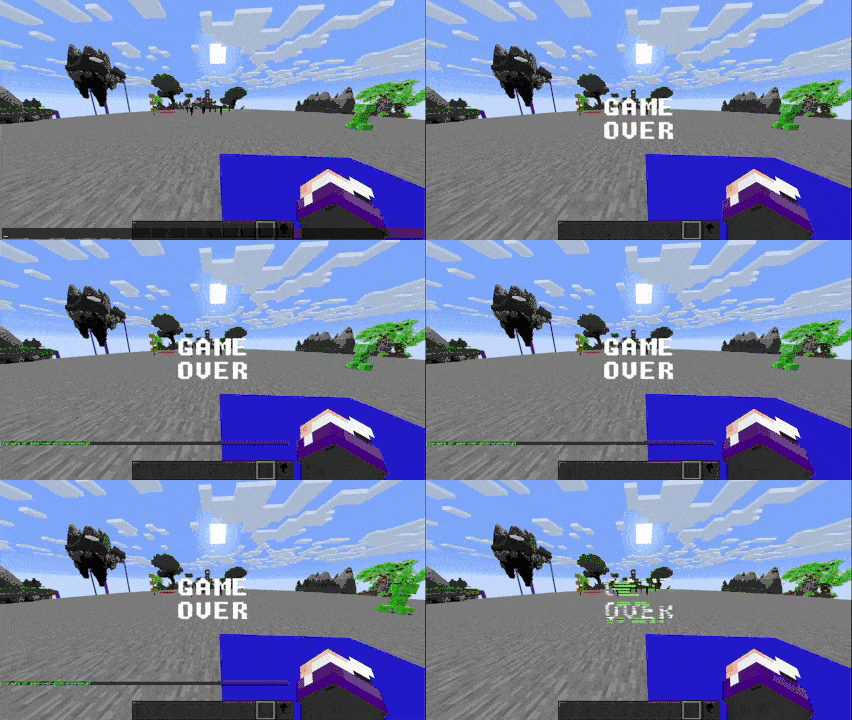
- # GIF or PNG sent on Client:

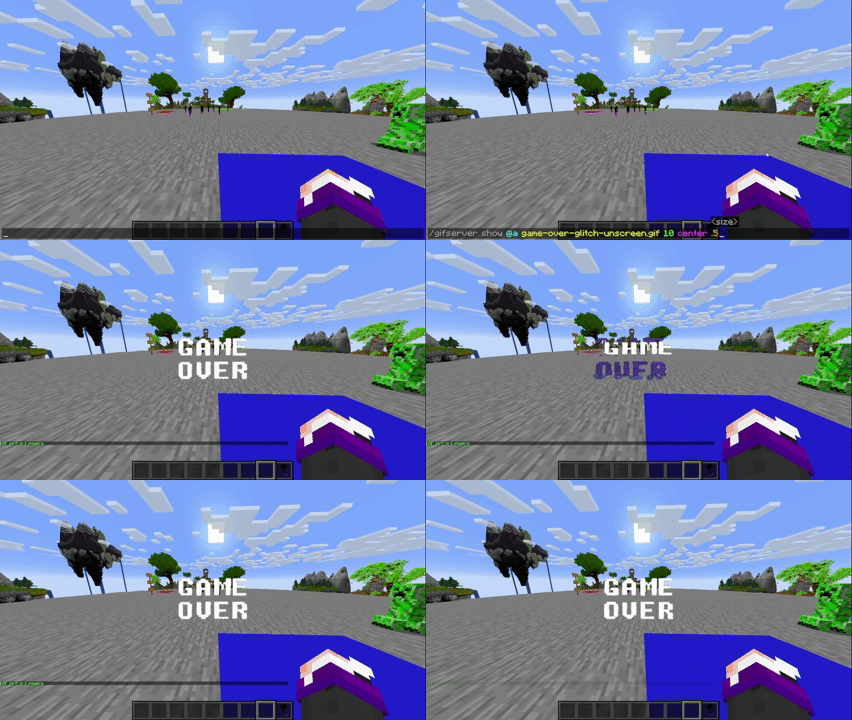
- # GIF or PNG sent on a Server:

---
# Tutorial
## Placing GIFs or PNGs on the Client
**Folder Location:**
Files go in the mod’s folder within your Minecraft directory:
`.minecraft/config/AnimatedFrames/`
If the folder doesn’t exist, it will be created automatically when the mod runs.
**Steps:**
1. Copy your GIF or PNG file (up to 10MB, 1280x1280 pixels, 300 frames) into `config/AnimatedFrames/`.
2. Ensure the file name includes the proper extension (`.gif` or `.png`).
3. Use the in-game command to display it:
*Example:* `/gif show sunny.gif 10 center 1.0`
**Notes:**
- Only you see the media when using `/gif show`.
- Ensure **AnimatedFrames** is in your `.minecraft/mods/` folder.
- Invalid or oversized files will show an error message in-game.
## Placing GIFs or PNGs on the Server
**Folder Location:**
Files go in the mod’s folder in the server directory:
`config/AnimatedFrames/server_gifs/`
If the folder doesn’t exist, it will be created automatically when the mod runs.
**Steps:**
1. Copy the GIF or PNG file (up to 10MB, 1280x1280 pixels, 300 frames) into `config/AnimatedFrames/server_gifs/`.
2. Ensure the file name includes `.gif` or `.png` (e.g., `tutorial.png`).
3. Use the server command to send it to players:
*Example:* `/gifserver show @a sunny.gif 15 center 1.0`
**Notes:**
- The server must have **AnimatedFrames** in its `mods/` folder.
- You need **operator (OP) permissions** to use `/gifserver`.
- All players with the mod installed will see the media when targeted (e.g., `@a` for all players).
- Files are cached on server startup for faster delivery.
- In files larger than 1MB, minor delays may occur.
---
## Credits
- By **[@SunnyMp](x.com/SunnyAim_)**
- Support: Contact [@SunnyAim_](x.com/SunnyAim_) for help or inquiries.
---
- Display **GIFs** and **PNGs** on screen!!
**AnimatedFrames** allows you to display **Animated GIFs and PNGs within Minecraft** using simple commands.
---
## 📝 Commands
- `/gif show <name> <duration> <position> <size>` → Display a GIF or PNG locally (client-side).
*Example*: `/gif show sunny.gif 10 center 1.0`
- `/gifserver show <player|@a|@p|@r> <name> <duration> <position> <size>` → Send a GIF or PNG to specified players (server-side, requires OP permissions).
*Example*: `/gifserver show @a example.gif 15 topleft 2.0`
- `/gifserver playlocal <name> <duration> <position> <scale>` → Play a **GIF or PNG** directly from your **local folder** (`config/AnimatedFrames/`) without uploading it to the server.
*Example*: `/gifserver playlocal example.png 10 center 1.0`
Useful for faster display on multiplayer servers and reduced loading times.
- `/gif stop` → Stop the current GIF or PNG (client-side).
- `/gifserver stop <player|@a|@p|@r>` → Stop the GIF or PNG for specified players (server-side).
- `/gif list` / `/gifserver list` → List available GIFs and PNGs in the client or server folder.
- `/gif help` / `/gifserver help` → Show command help.
---
## ⚠️ Requirements
- **Client**: Place GIFs or PNGs in `config/AnimatedFrames/` (created automatically on first run).
- **Server**: Place GIFs or PNGs in `config/AnimatedFrames/server_gifs/` (created automatically).
- **Note**: On dedicated servers, the **AnimatedAuth** premium plugin is required for `/gifserver` commands. Contact [@SunnyAim_](x.com/SunnyAim_) for details.
- GIFs and PNGs must not exceed **10MB**, **1280x1280 pixels**, or **300 frames** to avoid performance issues.
---
- # GIF or PNG sent on Client:

- # GIF or PNG sent on a Server:

---
# Tutorial
## Placing GIFs or PNGs on the Client
**Folder Location:**
Files go in the mod’s folder within your Minecraft directory:
`.minecraft/config/AnimatedFrames/`
If the folder doesn’t exist, it will be created automatically when the mod runs.
**Steps:**
1. Copy your GIF or PNG file (up to 10MB, 1280x1280 pixels, 300 frames) into `config/AnimatedFrames/`.
2. Ensure the file name includes the proper extension (`.gif` or `.png`).
3. Use the in-game command to display it:
*Example:* `/gif show sunny.gif 10 center 1.0`
**Notes:**
- Only you see the media when using `/gif show`.
- Ensure **AnimatedFrames** is in your `.minecraft/mods/` folder.
- Invalid or oversized files will show an error message in-game.
## Placing GIFs or PNGs on the Server
**Folder Location:**
Files go in the mod’s folder in the server directory:
`config/AnimatedFrames/server_gifs/`
If the folder doesn’t exist, it will be created automatically when the mod runs.
**Steps:**
1. Copy the GIF or PNG file (up to 10MB, 1280x1280 pixels, 300 frames) into `config/AnimatedFrames/server_gifs/`.
2. Ensure the file name includes `.gif` or `.png` (e.g., `tutorial.png`).
3. Use the server command to send it to players:
*Example:* `/gifserver show @a sunny.gif 15 center 1.0`
**Notes:**
- The server must have **AnimatedFrames** in its `mods/` folder.
- You need **operator (OP) permissions** to use `/gifserver`.
- All players with the mod installed will see the media when targeted (e.g., `@a` for all players).
- Files are cached on server startup for faster delivery.
- In files larger than 1MB, minor delays may occur.
---
## Credits
- By **[@SunnyMp](x.com/SunnyAim_)**
- Support: Contact [@SunnyAim_](x.com/SunnyAim_) for help or inquiries.
---
1 Update Logs
Update #2 : by SunnyMp 09/20/2025 1:55:34 pmSeptember 20, 2025 @ 5:55 pm UTC
# Changelog
*🛠️ Faster GIF Sharing: Send large GIFs to the server quickly.
*🛠️ Supports Larger GIFs: Now handles GIFs up to 10MB.
*🛠️ Fixed Bugs: No more flickering, broken animations, or missing frames.
*📚 Added Help Commands: New /gif help and /gifserver help for easy guidance.
*🛠️ Added /gif stop /gifserver stop to stop the gif, before it is added due to an error
*🛠️ Improved Stability: Clearer error messages and warnings for a smoother experience.
## Support: Sunny
*🛠️ Faster GIF Sharing: Send large GIFs to the server quickly.
*🛠️ Supports Larger GIFs: Now handles GIFs up to 10MB.
*🛠️ Fixed Bugs: No more flickering, broken animations, or missing frames.
*📚 Added Help Commands: New /gif help and /gifserver help for easy guidance.
*🛠️ Added /gif stop /gifserver stop to stop the gif, before it is added due to an error
*🛠️ Improved Stability: Clearer error messages and warnings for a smoother experience.
## Support: Sunny
More like this
![[1.10.2][1.11][Forge] Color Code GUI (colored + rainbow text, Unicode symbols in Minecraft!) Minecraft Mod](https://static.planetminecraft.com/files/resource_media/screenshot/1508/colorcodegui8654573_thumb.jpg) [1.10.2][1.11][Forge] Color Code GUI (colored + rainbow text, Unicode symbols in Minecraft!)Minecraft 1.11 Functional Mod
[1.10.2][1.11][Forge] Color Code GUI (colored + rainbow text, Unicode symbols in Minecraft!)Minecraft 1.11 Functional Mod jobicade
11/29/16 8:37
• posted 2/17/15 3:05
35.4k 5.6k 36x 34334
jobicade
11/29/16 8:37
• posted 2/17/15 3:05
35.4k 5.6k 36x 34334 TeleporterMinecraft 1.4.7 Functional Mod
 rossimo
1/20/13 4:22
• posted 1/11/13 6:10
27.1k 3.3k 45x 24119
rossimo
1/20/13 4:22
• posted 1/11/13 6:10
27.1k 3.3k 45x 24119


 hohigamer
 imB4
imB46722750
7


 INTMAX0x7FFFFFFF
 xxhunter4ever


 KaedeTheDemon
 Play Dos Games HD

 Craft-Club
)
)
Have something to say?