

• 4/16/23 1:46 am
- 399 views • 0 today
- save_alt 39 downloads
- Model
- Steve
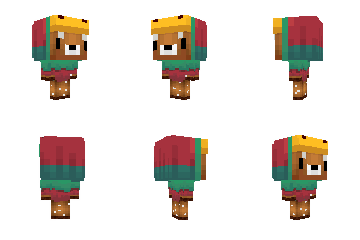
12
How to install for Winddows:
Step 1: You download the skin
Step 2: You open: Minecraft Launcher
Step 3: You go to: Minecraft Java
Step 4: You go to: Skins
Step 5: You click on: New skin
Step 6: You give the skin a name, I name it: Technoblade but you can give it anoter name
Step 7: You click on: Upload skin file and select: Technoblade in your downloads
Step 8: Click on: Done and you are Technoblade
How to install for Mac:
Step 1: You download the skin
Step 2: You open: Minecraft Launcher
Step 3: You go to: Minecraft Java
Step 4: You go to: Skins
Step 5: You click on: New skin
Step 6: You give the skin a name, I name it: Technoblade but you can give it anoter name
Step 7: You click on: Upload skin file and select: Technoblade in your downloads
Step 8: Click on: Done and you are Technoblade
Step 1: You download the skin
Step 2: You open: Minecraft Launcher
Step 3: You go to: Minecraft Java
Step 4: You go to: Skins
Step 5: You click on: New skin
Step 6: You give the skin a name, I name it: Technoblade but you can give it anoter name
Step 7: You click on: Upload skin file and select: Technoblade in your downloads
Step 8: Click on: Done and you are Technoblade
How to install for Mac:
Step 1: You download the skin
Step 2: You open: Minecraft Launcher
Step 3: You go to: Minecraft Java
Step 4: You go to: Skins
Step 5: You click on: New skin
Step 6: You give the skin a name, I name it: Technoblade but you can give it anoter name
Step 7: You click on: Upload skin file and select: Technoblade in your downloads
Step 8: Click on: Done and you are Technoblade
More like this

 Kurfi
Kurfi
 truMC
truMC
 MACND89

 pogdoggo
5850720
5


 aSimpleBaboon
 Chertolet





 makiroll
 Monochromes
 Npag
Npag

 belle7hh
Have something to say?