Published , 7/16/24 3:55 pm
- 2,880 views • 6 today
- 2
- 2
- 1

46
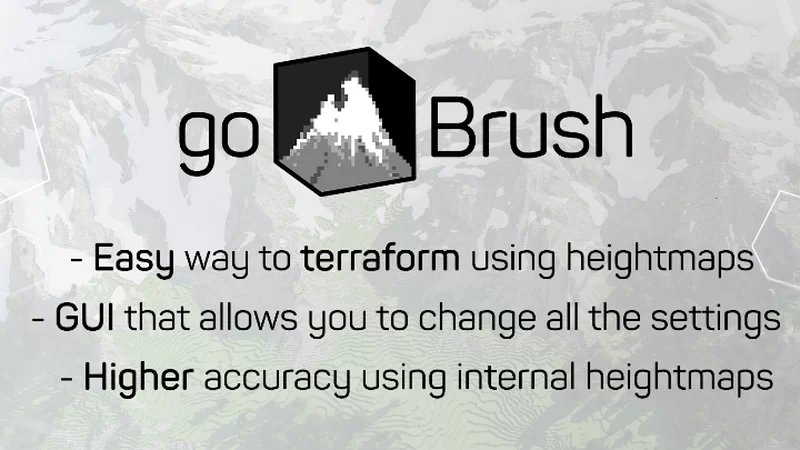
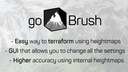
About plugin: goBrush is a simple free plugin to help with terraforming landscapes and creating mountains.
How to install: Download the plugin of the same version as your server, place it in the plugins folder and restart the server.
How to use: To work with the plugin you will only need a flint. It is a brush for “painting” mountains. You can customize it by pressing LMB and pressing RMB to use it.

More about the menu:
1. Enable/disable: In 1 slot you can enable or disable the brush, as well as customize its “mask”. The mask is responsible for what pattern your brush will be applied to. I recommend trying different ones and choosing your favorites. One of them allow you to create a volcano in just 1 click if you set it up correctly!


2. Editing the size of mountain: In the 2nd slot you customize the width of the area where the brush is used.
3. Editing the height of mountain: The 3rd slot is the height of your mountain.
4. Adjusting the mountain to the right altitude: The 4th slot is responsible for whether you are building up the mountain or, on the contrary, reducing it. This is useful when building large mountains and regions to slightly reduce the mountain where you need it.
5. Changing the direction: By clicking on the 5th slot, you will turn on the “3D” mode. When it is on, the mountains build up towards you instead of upwards to the sky.
6. Alignment of the mountain: Slot 6 turns on flat mode. With it you can level your mountains to the same height.
This is a tool I use in my builds and I hope this little tutorial will familiarize you with it and help you create great landscapes.
This is a tool I use in my builds and I hope this little tutorial will familiarize you with it and help you create great landscapes.
How to install: Download the plugin of the same version as your server, place it in the plugins folder and restart the server.
How to use: To work with the plugin you will only need a flint. It is a brush for “painting” mountains. You can customize it by pressing LMB and pressing RMB to use it.
More about the menu:
1. Enable/disable: In 1 slot you can enable or disable the brush, as well as customize its “mask”. The mask is responsible for what pattern your brush will be applied to. I recommend trying different ones and choosing your favorites. One of them allow you to create a volcano in just 1 click if you set it up correctly!
2. Editing the size of mountain: In the 2nd slot you customize the width of the area where the brush is used.
3. Editing the height of mountain: The 3rd slot is the height of your mountain.
4. Adjusting the mountain to the right altitude: The 4th slot is responsible for whether you are building up the mountain or, on the contrary, reducing it. This is useful when building large mountains and regions to slightly reduce the mountain where you need it.
5. Changing the direction: By clicking on the 5th slot, you will turn on the “3D” mode. When it is on, the mountains build up towards you instead of upwards to the sky.
6. Alignment of the mountain: Slot 6 turns on flat mode. With it you can level your mountains to the same height.
This is a tool I use in my builds and I hope this little tutorial will familiarize you with it and help you create great landscapes.
This is a tool I use in my builds and I hope this little tutorial will familiarize you with it and help you create great landscapes.
6342429
6




 autisticmess




Have something to say?