
1
Texture pack help
I downloaded a minecraft texture pack, and I placed it in the resource packs folder, but it wouldn't be selected. It's a zipped file. Am I doing something wrong?
16

I don't know what to tell you as I have been having the same problem but you might want to try extracting it

I tried that too, but it didn't work.

just drag everything in the zip to a seperate folder then place the FOLDER in the resourcepack folder in %appdata% HOPE THAT HELPED!
It's still not working.
http://www.planetminecraft.com/server/a ... the-thuum/ That's the link to the texture pack I tried to download.

TheTomahawkwww.planetminecraft.com/server/assassincraft-tekkit-pvp-factions-chestshop-the-thuum/ That's the link to the texture pack I tried to download.
That's a server buddy... not a texture pack...

0.0 Humiliated
Sorry, that's wasn't the correct one.
How do I add a folder with a post?

download texture ender and select the resource pack and convert it, in there and a lot of worlds will appear, when it says all done (or something like that) close it and search the file for example (sphax resource pack CONVERTED) copy and paste the one that says converted in your resourcespacks folder
sorry if it isnt clear enough
Hope it works
sorry if it isnt clear enough
Hope it works

1. Make sure that it is the RIGHT version.
2. Put the zipped file in the resource packs folder.
3. If that doesn't work, extract the folder from the zipped file and put both in.
And if none of the above work then IDK sorry.
I hope this was help to you :3
2. Put the zipped file in the resource packs folder.
3. If that doesn't work, extract the folder from the zipped file and put both in.
And if none of the above work then IDK sorry.
I hope this was help to you :3

What in the heck does "extract the folder from the zipped file and put both in." mean?
None of this is working.

PRE: Extract / open the .zip folder to check the format is correct
1. Check Formatting in the opened file looks like this to begin with, enter assets folder
2. Check formatting is only Minecraft, enter this folder
3. most resourcepacks will have these 2 folders inside the minecraft folder, enter textures folder
4. this is the layout of the textures for the resource pack
5. if all is good head to point 5 and move the resource pack over to the "selected resource packs" section by hovering over it and clicking the arrow on the icon
Image of steps
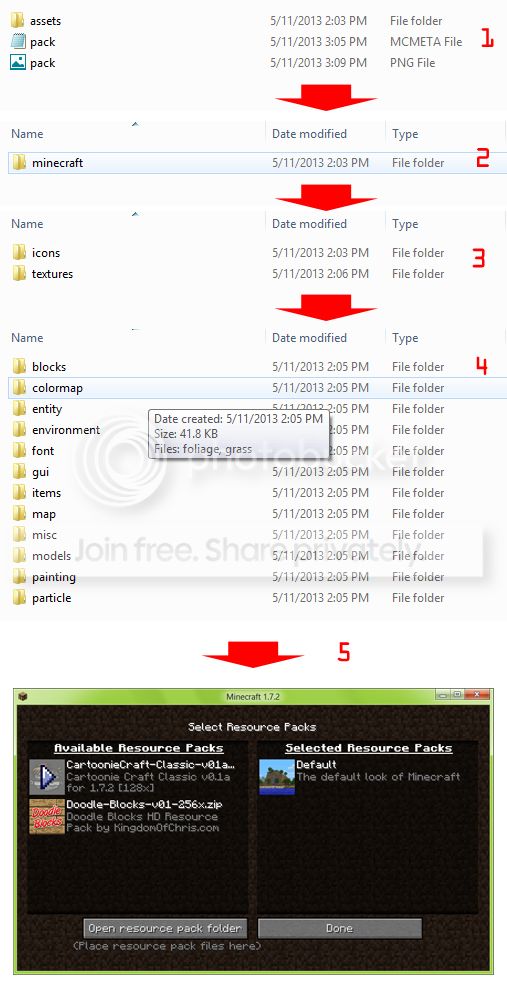
1. Check Formatting in the opened file looks like this to begin with, enter assets folder
2. Check formatting is only Minecraft, enter this folder
3. most resourcepacks will have these 2 folders inside the minecraft folder, enter textures folder
4. this is the layout of the textures for the resource pack
5. if all is good head to point 5 and move the resource pack over to the "selected resource packs" section by hovering over it and clicking the arrow on the icon
Image of steps

What do you mean by check formatting?
as in how the folders are named and laid out
