
- 13
- 6
- 16

43
I have seen so many bad descriptions in my time on PMC I can't even count them. Some examples are:
I have worked really hard on this texture pack. Enjoy!
Random letters and numbers to meet the letter requirement.
I don't have anything else to say but apparently there is a letter requirement.
Etc.
All these descriptions are missing so much. Most of the works without a proper description are sometimes stolen but, sometimes they aren't. And the number one excuse I hate most to meet the letter requirement is, number 3 on my list above this. You should never have to say that!So I am going to show you how to make a proper description for any project or texture pack.
Step 1: Layout
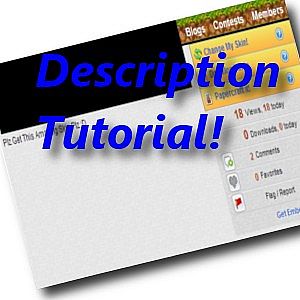
Every description should have some form of layout or format. Below is a picture showing one type of layout. This is a good template to work off of.

Step 2:Information
No matter what you are uploading, you must have info. This is going to be the big block of your description. Do not just put this took me 2 and a half weeks to make and I really like it so download, favorite, and diamond. Put how you thought of your project, what it is, what it includes, what it is about, and be detailed. Don't put a whole life story, but don't just write, this is a texture pack that is based on star wars. Enjoy. Put a little more effort into it.
Step 3: Requirements
Does your mod have any external requirements like forge, or another mod? List it here so that people see first and foremost what they need to run it. Also, if possible, link it, and tell how to install it. That way your mod can run fine and people don't have to guess what they need to get it to work right.
Step 4: Installation
One of my biggest description pet peeves is when people put up a project or texture pack and don't tell how to install it. Granted, it's not that hard, but some people may not know. It's this simple, you may even copy the instructions and use in your own project if you like
Projects: Download the file and place into your Minecraft saves folder. If you do not know where that is go to:C:/Users/.../AppData/Roaming/.minecraft/saves
Resource Packs: Download the file and place into your Minecraft Resource Packs Folder. It is located atC:/Users/.../AppData/Roaming/.minecraft/resourcepacks
That simple.
Step 5: Changelog
This part is a little more difficult and isn't necessarily required by any means. You can simply use update logs. But if you want to do this, here is a little template.
Version 1.0 mm/dd/yyyy
-Change
-Change
-Change
Version 2.0 mm/dd/yyyy
-Change
-Change
-Change
Follow that, and it will stay organized, and look good.
Step 6: FAQ
This part simply put, is a list of your most Frequently Asked Questions ( FAQ) and their respective answers.
Step 7: Credits
This part gives credit to anyone who helped make your project in any way. In one of my texture packs, I give Misa credit for her mob textures. It doesn't hurt, and it helps the other person.
Step 8: Beautifying
This part could range from a few simple edits, to making a masterpiece in a description. It can be anything from adding a picture or two, some color to text, spelling edits, and much more to make it a little more pleasant to look at and find things.
Feel free to give this link to anyone you feel needs it!
Tutorial For Buttons:
This section is to show you how to add some elements to your description.
You know that little toolbar above your description when editing. That does a lot. I am going to show you how to use it. Take a look at this picture for reference.

I will do my best to explain what all those buttons do.
Bold: Makes text bold
Italics: Slants text
Underline: Underlines text
Crossout: Crosses out text like this
Text color: Adds color to text
Highlight: Highlight text
Remove Edit: Takes away any changes made to text such as color, boldness, etc.
Text align: Aligns text on page. Allows text in middle or right of page
Spoiler: Puts a spoiler box in the description for text that can save clutter and keep things organized.
Video: Allows youtube video embedding
Text options: Allows you to change text type and size
Long line: Adds a horizontal line that can be used as a header
Image: Upload image to imgur or equivalent, right click and select Copy image URL, click that button, paste URl
Hyperlink: Allows you to put links inside text
Delink: Unlinks text
Bullets: Place bullet points or numbers
Paste: Allows you to paste as text
That is all for my little tutorial/rant. I hope you enjoyed and maybe learned a thing or two.
I have worked really hard on this texture pack. Enjoy!
Random letters and numbers to meet the letter requirement.
I don't have anything else to say but apparently there is a letter requirement.
Etc.
All these descriptions are missing so much. Most of the works without a proper description are sometimes stolen but, sometimes they aren't. And the number one excuse I hate most to meet the letter requirement is, number 3 on my list above this. You should never have to say that!So I am going to show you how to make a proper description for any project or texture pack.
Step 1: Layout
Every description should have some form of layout or format. Below is a picture showing one type of layout. This is a good template to work off of.
Step 2:Information
No matter what you are uploading, you must have info. This is going to be the big block of your description. Do not just put this took me 2 and a half weeks to make and I really like it so download, favorite, and diamond. Put how you thought of your project, what it is, what it includes, what it is about, and be detailed. Don't put a whole life story, but don't just write, this is a texture pack that is based on star wars. Enjoy. Put a little more effort into it.
Step 3: Requirements
Does your mod have any external requirements like forge, or another mod? List it here so that people see first and foremost what they need to run it. Also, if possible, link it, and tell how to install it. That way your mod can run fine and people don't have to guess what they need to get it to work right.
Step 4: Installation
One of my biggest description pet peeves is when people put up a project or texture pack and don't tell how to install it. Granted, it's not that hard, but some people may not know. It's this simple, you may even copy the instructions and use in your own project if you like
Projects: Download the file and place into your Minecraft saves folder. If you do not know where that is go to:C:/Users/.../AppData/Roaming/.minecraft/saves
Resource Packs: Download the file and place into your Minecraft Resource Packs Folder. It is located atC:/Users/.../AppData/Roaming/.minecraft/resourcepacks
That simple.
Step 5: Changelog
This part is a little more difficult and isn't necessarily required by any means. You can simply use update logs. But if you want to do this, here is a little template.
Version 1.0 mm/dd/yyyy
-Change
-Change
-Change
Version 2.0 mm/dd/yyyy
-Change
-Change
-Change
Follow that, and it will stay organized, and look good.
Step 6: FAQ
This part simply put, is a list of your most Frequently Asked Questions ( FAQ) and their respective answers.
Step 7: Credits
This part gives credit to anyone who helped make your project in any way. In one of my texture packs, I give Misa credit for her mob textures. It doesn't hurt, and it helps the other person.
Step 8: Beautifying
This part could range from a few simple edits, to making a masterpiece in a description. It can be anything from adding a picture or two, some color to text, spelling edits, and much more to make it a little more pleasant to look at and find things.
Feel free to give this link to anyone you feel needs it!
Tutorial For Buttons:
This section is to show you how to add some elements to your description.
You know that little toolbar above your description when editing. That does a lot. I am going to show you how to use it. Take a look at this picture for reference.
I will do my best to explain what all those buttons do.
Bold: Makes text bold
Italics: Slants text
Underline: Underlines text
Crossout: Crosses out text like this
Text color: Adds color to text
Highlight: Highlight text
Remove Edit: Takes away any changes made to text such as color, boldness, etc.
Text align: Aligns text on page. Allows text in middle or right of page
Spoiler: Puts a spoiler box in the description for text that can save clutter and keep things organized.
Video: Allows youtube video embedding
Text options: Allows you to change text type and size
Long line: Adds a horizontal line that can be used as a header
Image: Upload image to imgur or equivalent, right click and select Copy image URL, click that button, paste URl
Hyperlink: Allows you to put links inside text
Delink: Unlinks text
Bullets: Place bullet points or numbers
Paste: Allows you to paste as text
That is all for my little tutorial/rant. I hope you enjoyed and maybe learned a thing or two.
1 Update Logs
Section : by flamingdiaper4U 09/12/2013 3:47:15 pmSeptember 12, 2013 @ 7:47 pm UTC
Added 1 new picture in description and a new toolbar tutorial section.
More like this
![[TUTORIAL] How to add a photo to your profile description on PMC | In 9 steps Minecraft Blog](https://static.planetminecraft.com/files/resource_media/screenshot/1244/cover_4005133_thumb.jpg) [TUTORIAL] How to add a photo to your profile description on PMC | In 9 stepsTutorial Blog
[TUTORIAL] How to add a photo to your profile description on PMC | In 9 stepsTutorial Blog NuclearBanana
•10/31/12 7:16
3k 25x 1309
NuclearBanana
•10/31/12 7:16
3k 25x 1309


 loppe1
 barela
 Buikes
 WhiteFang Wolf
1959761
6






 Opla Manerda DEV Team





 Captain Kai
Have something to say?
Your "highlighting" that you have done in reply to Bob_In_Soup has only made this 10 times worse, and I feel that you have trolled him and the community.
Please remove the insane colors and use black and white.