



• 8/1/20 6:23 pm
- 2.6k views • 0 today
- save_alt 71 downloads
- Progress
- 100% complete

168
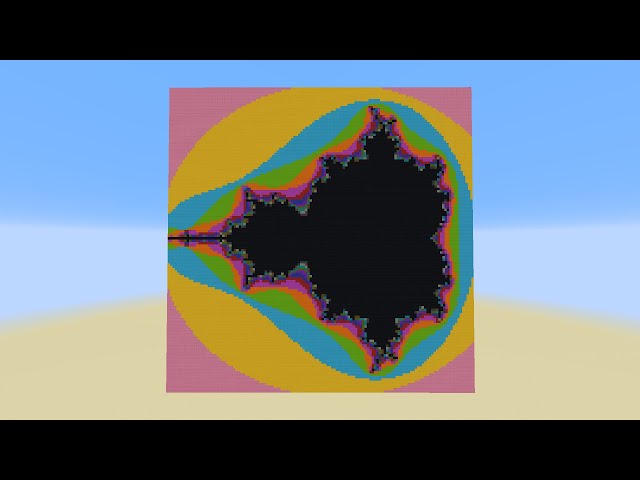
This is a Mandelbrot set generator I made a couple days ago, inspired largely by lorgon111's two Mandelbrot set generators. Those versions were created before functions, making it take much longer to create the set. I had a recent interest in fractals which inspired me to go back to his videos and make a newer version. The actual generation functions almost identical to lorgon's F# code, with a few minor changes. I then added a menu to change all the variables and zoom into the set. I really like how it turned out, and if you enjoyed a diamond would be much appreciated. :D
Instructions:
Main Features
Zoom in/out: Right-click a carrot on a stick while pointing at the section of the display you wish to zoom in/out on.
Menu: Run the following function in chat to bring up the menu: /function menu:start
Create: Generate the Mandelbrot Set by clicking the Create button.
Clear: Reset the display to black wool by clicking the Clear button.
Default: Sets the values for the offsets and scales used for the general Mandelbrot Set and automatically create it by clicking the Default button.
Texture/Blocks: Change the block types used in the display by clicking the Texture button. The types will cycle.
Zoom Amount: Change how far you zoom in or zoom out by clicking the Zoom button and adjusting the value. For reference, a value of 500 will zoom out 2x, a value of 1000 will shift around the display without zooming, and a value of 2000 will zoom in 2x. As a general rule for obtaining the values for the desired zoom: when zooming in, multiply the desired zoom amount by 1000; when zooming out, divide 1000 by the desired zoom amount.
Advanced Features
X Offset: This value shifts the display along the horizontal axis. For reference, the entire display is 129 units across.
Y Offset: This value shifts the display along the vertical axis. The display is 129 units across in the vertical.
X Scale: This value sets the amount of zoom/scaling along the horizontal axis. Doubling the current value will stretch the display 2x along the horizontal, while halving the value will squish it. A negative value will flip the display along the vertical axis.
Y Scale: This value sets the amount of zoom/scaling along the vertical axis. Doubling the current value will stretch the display 2x along the vertical, while halving the value will squish it. A negative value will flip the display along the horizontal axis.
Degree: This value sets the computational accuracy. The value set in the map download is 5000. When zooming in, a larger degree will provide a more accurate picture, while a lower degree will provide a more accurate picture when zooming out. To see this in action, set the value to 20 and hit default, and the display will show much larger pixels.
Instructions:
Main Features
Zoom in/out: Right-click a carrot on a stick while pointing at the section of the display you wish to zoom in/out on.
Menu: Run the following function in chat to bring up the menu: /function menu:start
Create: Generate the Mandelbrot Set by clicking the Create button.
Clear: Reset the display to black wool by clicking the Clear button.
Default: Sets the values for the offsets and scales used for the general Mandelbrot Set and automatically create it by clicking the Default button.
Texture/Blocks: Change the block types used in the display by clicking the Texture button. The types will cycle.
Zoom Amount: Change how far you zoom in or zoom out by clicking the Zoom button and adjusting the value. For reference, a value of 500 will zoom out 2x, a value of 1000 will shift around the display without zooming, and a value of 2000 will zoom in 2x. As a general rule for obtaining the values for the desired zoom: when zooming in, multiply the desired zoom amount by 1000; when zooming out, divide 1000 by the desired zoom amount.
Advanced Features
X Offset: This value shifts the display along the horizontal axis. For reference, the entire display is 129 units across.
Y Offset: This value shifts the display along the vertical axis. The display is 129 units across in the vertical.
X Scale: This value sets the amount of zoom/scaling along the horizontal axis. Doubling the current value will stretch the display 2x along the horizontal, while halving the value will squish it. A negative value will flip the display along the vertical axis.
Y Scale: This value sets the amount of zoom/scaling along the vertical axis. Doubling the current value will stretch the display 2x along the vertical, while halving the value will squish it. A negative value will flip the display along the horizontal axis.
Degree: This value sets the computational accuracy. The value set in the map download is 5000. When zooming in, a larger degree will provide a more accurate picture, while a lower degree will provide a more accurate picture when zooming out. To see this in action, set the value to 20 and hit default, and the display will show much larger pixels.
1 Update Logs
Update #1 : by shanewolf38 08/01/2020 9:46:12 pmAugust 2, 2020 @ 1:46 am UTC
- updated map to correct name
More like this
 Circle Generator in One Command!Redstone Device Map
 shanewolf38
•6/11/16 11:55
37.3k 1.8k 24x 22712
shanewolf38
•6/11/16 11:55
37.3k 1.8k 24x 22712


 Maze Generator (Sidewinder Algorithm)Redstone Device Mapshanewolf38
•8/29/15 1:58
984 40 6x 2101
Maze Generator (Sidewinder Algorithm)Redstone Device Mapshanewolf38
•8/29/15 1:58
984 40 6x 2101
4702238
2












![DM-4P Programmable Drum-Machine [1.12.2] Minecraft Map & Project](https://static.planetminecraft.com/files/image/minecraft/project/2026/678/20199162_s.jpg)

 MrNin
MrNin![DM-04 and DM-16 drum machines. [1.12.2] Minecraft Map & Project](https://static.planetminecraft.com/files/image/minecraft/project/2026/689/20196361-ad_s.jpg)

Have something to say?
For render this i use Kalles fraktaler 2+. you ?