
• 7/7/14 10:37 pm
- 1.4k views • 0 today
- 2
- 0

24
Let's get started on reducing your lag in Minecraft!
Section 1 Basic Settings
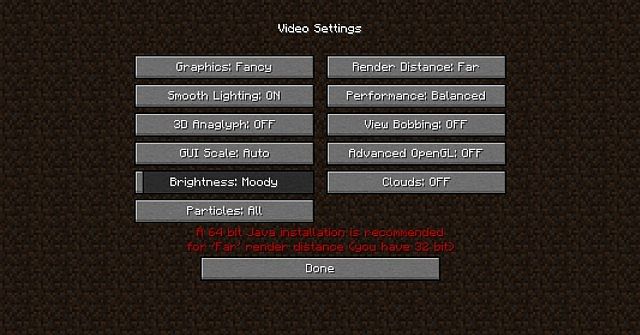
First off, these are some basic settings to reduce a decent portion of lag in Minecraft. The first thing you do when you just have a clean copy of Minecraft (no mods or shaders) is to go into your options. Press the Esc key on your keyboard (top left-hand corner) and it will open up the menu when you are ingame. In the main start screen, you should see a box labeled "Options". Click on options and choose video settings.
Now change the graphics settings! (Click each of the boxes to change the settings!)
Graphics: Fast (Instead of fancy)
Smooth Lighting: Off (Turn it on when you are filming to make the lighting smoother)
3D Anaglyph: Off (This doesno t apply much to the lag but leave it off unless you want 3D viewing; requires red and blue 3D glasses)
GUI Scale: Preference (This also doesno t apply to lag but I chose Automatic)
Brightness: Preference (This is your choice but I choose Bright (max) so I can see more at night)
Particles: Minimal (This doesno t reduce as much lag but is still recommended) NOTE: Some redstone devices that use smoke or water particles will not work when you have this at minimal. (This shouldno t apply to you if you dono t use redstone).
Render Distance: Normal, Small, or Tiny (Changing it to the Far setting is only recommended if your computer can handle far rendering which allows you to see farther but increases lag. Short and Tiny settings reduce a lot of lag but dono t allow you to see as far and will lag a bit when you start to walk in unrendered areas.
Performance: Max FPS (This setting allows more frames to move = smoother and faster movement. But this setting uses more power (not too much). The other settings reduce the amount of frames per second (FPS) = a bit laggier but uses less power).
View Bobbing: Preference (This doesno t interfere with lag and just moves your character so ito s more realistic).
Advanced OpenGL: On/Off (This improves your FPS rate only if your graphics (video) card supports it. Choose the On setting, and test your FPS in a Minecraft world. Change the settings back and forth to see if turning it on or off makes a difference).
Clouds: Off (This removes clouds = less lag)
Section 2 Difficulty Makes a Difference
The difficulty does matter when it comes to lag. Difficulty settings allow the spawning of mobs, easy (less spawning), hard (more spawning). The more mobs there are, the more lag there is. As long as your difficulty is on Peaceful, you should feel less lag. I know that some maps and playing Minecraft survival must be on Easy or harder so ignore this tip if you have set it to Hardcore or playing MC survival, or playing a map with mobs on it.
Section 3 Mods and How to Control Them
First off, you may have a couple mods installed already (TMI, SPC etc.) You are probably wondering: How does this improve my Minecraft? Well, having too many mods on Minecraft causes your Minecraft to take longer to open itself. There are a couple mods to control your performance. One is Single Player Commands. It has a o killallo command that eliminates entities such as mobs, paintings, minecarts, and tossed items. Warning: It will destroy those entities from your world so prepare if you see your paintings gone or your chicken farm deserted. An very, very good mod is Optifine. This mod increases FPS rate and decreases lag. It opens up a lot of graphics settings and render options for you to change such as particles, chunk updates and more.
Also, installing shaders causes a lot of lag. Shaders are good for cinematics but are horrible for normal gameplay and create lots of lag. Try to reduce using shaders unless needed or disable them. Installing HD texture fixes can also increase lag. When choosing a texture pack that has lots of detail (16x16 or larger), it takes longer for Minecraft to change every block and texture in Minecraft and also to render it.
Section 4 TNT and Redstone Tips
This is very important for heavily redstone uses and TNT detonations. When TNT detonates, it breaks blocks and turns a portion of them into block entities. In the current update, same items will join together as "groupings" to reduce lag. Having tons of block entities (like 4000) will lag your computer and the explosions create lag as well. Reduce the lag by using the Single Player Command: drops. By disabling o dropso , items will not drop from TNT explosions and destroying them. As of the current Minecraft update, the command, "/gamerule doTileDrops false" will stop drops from blocks (such as TNT explosions). This also means that when you break a block in survival, it will not drop the block. Redstone contraptions can also lag your computer. Try reducing the amount of redstone and remove redstone clocks. Having redstone run at a certain time and then turned off is optimal for multiplayer servers and redstone-based mini-games. Use pistons to control the turn on/off of redstone clocks.
Section 5 Other Tips
Turn off the Aero effect on PCs (Windows 7)
Disable screensavers, desktop effects, etc.
Allocate more RAM to Minecraft
Section 6 Player Tips
You_Mine_I_Craft o If you have a higher-resolution texture pack, it will lag your game because of the detail and pixels it has to display. Using a lower resolution pack (16x16, 8x8, 4x4, 2x2) is better and increases your frame rate. The simpler the texture pack is, the more FPS you can obtain.
Noobkackboon o Optifine has two OpenGl modes: Fast, Slow, and Off. These modes can increase the FPS only if your graphics card supports OpenGL 2.0 or higher. Use CCleanerLINK to remove temporary files and browser history to speed up your computer. Use Windows Task Manager to o killo processes that use up the most energy (dono t kill the processes that the OS needs). Defragment your computer to speed it up. The more often you defragment it, the less time it takes. Dono t use Microsofto s defragmenter, ito s bad.
Dusty012 o In Optifine, go to video settings, then graphics and choose the graphics setting. Change it to o fasto .
Scotlickify o Allocate more RAM to Minecraft
IXLKIDDO - Install OptiFine Standard first, next install OptiFine Smooth (if smooth isn't out yet then use light), next install OptiFine Light (note if you installed OptiFine Light already in the previous step then skip this one), and last but not last install OptiFine Ultra if possible. Also install Fishtaco's FPS++ mod. LINK
Section 7 The Bottom Line
Change your graphics settings down
Change your difficulty to stop hostile mobs from spawning to reduce lag
Make sure your computer is not old, is not infected with viruses, or running with too many programs at once
Use mods that you really need and install Optifine (compatible with most mods) and do not install shaders (unless you need it)
Do not use/place too much TNT and control the redstoning (do not use redstone clocks too much)
Turn off the Aero effect and disable screensavers and desktop effects
Section 1 Basic Settings
First off, these are some basic settings to reduce a decent portion of lag in Minecraft. The first thing you do when you just have a clean copy of Minecraft (no mods or shaders) is to go into your options. Press the Esc key on your keyboard (top left-hand corner) and it will open up the menu when you are ingame. In the main start screen, you should see a box labeled "Options". Click on options and choose video settings.
Now change the graphics settings! (Click each of the boxes to change the settings!)
Graphics: Fast (Instead of fancy)
Smooth Lighting: Off (Turn it on when you are filming to make the lighting smoother)
3D Anaglyph: Off (This doesno t apply much to the lag but leave it off unless you want 3D viewing; requires red and blue 3D glasses)
GUI Scale: Preference (This also doesno t apply to lag but I chose Automatic)
Brightness: Preference (This is your choice but I choose Bright (max) so I can see more at night)
Particles: Minimal (This doesno t reduce as much lag but is still recommended) NOTE: Some redstone devices that use smoke or water particles will not work when you have this at minimal. (This shouldno t apply to you if you dono t use redstone).
Render Distance: Normal, Small, or Tiny (Changing it to the Far setting is only recommended if your computer can handle far rendering which allows you to see farther but increases lag. Short and Tiny settings reduce a lot of lag but dono t allow you to see as far and will lag a bit when you start to walk in unrendered areas.
Performance: Max FPS (This setting allows more frames to move = smoother and faster movement. But this setting uses more power (not too much). The other settings reduce the amount of frames per second (FPS) = a bit laggier but uses less power).
View Bobbing: Preference (This doesno t interfere with lag and just moves your character so ito s more realistic).
Advanced OpenGL: On/Off (This improves your FPS rate only if your graphics (video) card supports it. Choose the On setting, and test your FPS in a Minecraft world. Change the settings back and forth to see if turning it on or off makes a difference).
Clouds: Off (This removes clouds = less lag)
Section 2 Difficulty Makes a Difference
The difficulty does matter when it comes to lag. Difficulty settings allow the spawning of mobs, easy (less spawning), hard (more spawning). The more mobs there are, the more lag there is. As long as your difficulty is on Peaceful, you should feel less lag. I know that some maps and playing Minecraft survival must be on Easy or harder so ignore this tip if you have set it to Hardcore or playing MC survival, or playing a map with mobs on it.
Section 3 Mods and How to Control Them
First off, you may have a couple mods installed already (TMI, SPC etc.) You are probably wondering: How does this improve my Minecraft? Well, having too many mods on Minecraft causes your Minecraft to take longer to open itself. There are a couple mods to control your performance. One is Single Player Commands. It has a o killallo command that eliminates entities such as mobs, paintings, minecarts, and tossed items. Warning: It will destroy those entities from your world so prepare if you see your paintings gone or your chicken farm deserted. An very, very good mod is Optifine. This mod increases FPS rate and decreases lag. It opens up a lot of graphics settings and render options for you to change such as particles, chunk updates and more.
Also, installing shaders causes a lot of lag. Shaders are good for cinematics but are horrible for normal gameplay and create lots of lag. Try to reduce using shaders unless needed or disable them. Installing HD texture fixes can also increase lag. When choosing a texture pack that has lots of detail (16x16 or larger), it takes longer for Minecraft to change every block and texture in Minecraft and also to render it.
Section 4 TNT and Redstone Tips
This is very important for heavily redstone uses and TNT detonations. When TNT detonates, it breaks blocks and turns a portion of them into block entities. In the current update, same items will join together as "groupings" to reduce lag. Having tons of block entities (like 4000) will lag your computer and the explosions create lag as well. Reduce the lag by using the Single Player Command: drops. By disabling o dropso , items will not drop from TNT explosions and destroying them. As of the current Minecraft update, the command, "/gamerule doTileDrops false" will stop drops from blocks (such as TNT explosions). This also means that when you break a block in survival, it will not drop the block. Redstone contraptions can also lag your computer. Try reducing the amount of redstone and remove redstone clocks. Having redstone run at a certain time and then turned off is optimal for multiplayer servers and redstone-based mini-games. Use pistons to control the turn on/off of redstone clocks.
Section 5 Other Tips
Turn off the Aero effect on PCs (Windows 7)
Disable screensavers, desktop effects, etc.
Allocate more RAM to Minecraft
Section 6 Player Tips
You_Mine_I_Craft o If you have a higher-resolution texture pack, it will lag your game because of the detail and pixels it has to display. Using a lower resolution pack (16x16, 8x8, 4x4, 2x2) is better and increases your frame rate. The simpler the texture pack is, the more FPS you can obtain.
Noobkackboon o Optifine has two OpenGl modes: Fast, Slow, and Off. These modes can increase the FPS only if your graphics card supports OpenGL 2.0 or higher. Use CCleanerLINK to remove temporary files and browser history to speed up your computer. Use Windows Task Manager to o killo processes that use up the most energy (dono t kill the processes that the OS needs). Defragment your computer to speed it up. The more often you defragment it, the less time it takes. Dono t use Microsofto s defragmenter, ito s bad.
Dusty012 o In Optifine, go to video settings, then graphics and choose the graphics setting. Change it to o fasto .
Scotlickify o Allocate more RAM to Minecraft
IXLKIDDO - Install OptiFine Standard first, next install OptiFine Smooth (if smooth isn't out yet then use light), next install OptiFine Light (note if you installed OptiFine Light already in the previous step then skip this one), and last but not last install OptiFine Ultra if possible. Also install Fishtaco's FPS++ mod. LINK
Section 7 The Bottom Line
Change your graphics settings down
Change your difficulty to stop hostile mobs from spawning to reduce lag
Make sure your computer is not old, is not infected with viruses, or running with too many programs at once
Use mods that you really need and install Optifine (compatible with most mods) and do not install shaders (unless you need it)
Do not use/place too much TNT and control the redstoning (do not use redstone clocks too much)
Turn off the Aero effect and disable screensavers and desktop effects
More like this
 Ultimate Guide to Remove Server LagTutorial Blog
 123keelos_
5/16/15 9:26
• posted 2/13/15 4:58
15k 5x 1105
123keelos_
5/16/15 9:26
• posted 2/13/15 4:58
15k 5x 1105


-
 Paint_Ninja
 GrifDog96
 G33K4
G33K4 00blast
2981740
6



 faisu887

 _Dusky_
 Mxtsukii


 KaaXdev
Have something to say?