

• 5/20/15 4:04 pm
- 1.7k views • 0 today
- 14
- 4
- 10

14

THE ISSUE
When designing graphics for Minecraft related projects, I'm sure that you've run across the problem of using textures from the game. You try enlarging/shrinking the texture, and it starts to look blurry... Below is an example of what I mean:
(500x500)

THE SOLUTION
Solving this issue is actually rather simple. All you have to do is mess with some settings in Photoshop to allow you to resize pixelated images without making it less pixelated.
STEP 1
Open up your texture in Photoshop. I will be using the book from the Conquest resource pack.

STEP 2
This texture is way too small for you to use... So now, you press ALT+CTRL+I at the same time, which opens up the image size window.
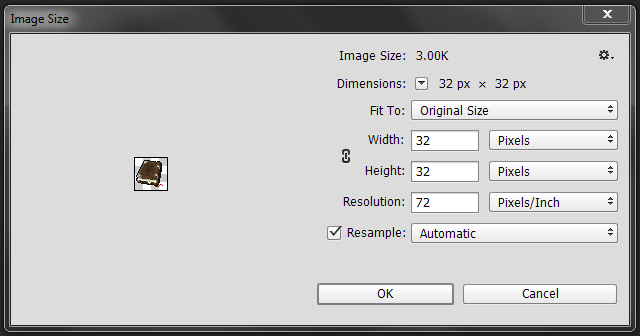
STEP 3
Once there, you need to set the size of the image to your preferred size. I will be setting it to be 500x500. Once you do that, go to where it says "Automatic" and change the setting to "Nearest Neighbor (hard edges)" and click OK.
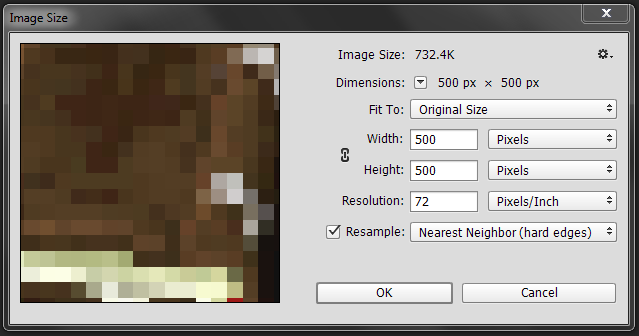
FINISHED
There you have it! The texture will be the size you set, without losing any quality. You can do this with any resource pack texture, so get going!
(500x500)

Thanks for making this a popular blog :)
More like this
 How to Make a Seamless Texture in PhotoshopTutorial Blog
 TastyYoghurt
•6/28/16 9:51
5.5k 11x 1189
TastyYoghurt
•6/28/16 9:51
5.5k 11x 1189![Make an Animated Minecraft Texture - How to Tutorials [ Minecraft ] Minecraft Blog](https://static.planetminecraft.com/files/resource_media/screenshot/1305/Making-Animated-Textures_4719735_thumb.jpg) Make an Animated Minecraft Texture - How to Tutorials [ Minecraft ]Tutorial Blog
Make an Animated Minecraft Texture - How to Tutorials [ Minecraft ]Tutorial Blog ephla442
•1/28/13 5:20
1.8kx 141
ephla442
•1/28/13 5:20
1.8kx 141![[Tutorial] Texture pack ( PICS! ) FREE PHOTOSHOP Minecraft Blog](https://static.planetminecraft.com/files/resource_media/screenshot/1309/Untitled-4_4937940_thumb.jpg)

![[Tutorial] Minecraft TexturePacks Minecraft Blog](https://static.planetminecraft.com/files/resource_media/screenshot/1310/images_4988565_thumb.jpg)
 repasa
 Diamondhackers
 RedDragon8426
3316808
6
![Enlarging Minecraft Textures [Photoshop Tutorial] Minecraft Blog](https://static.planetminecraft.com/files/resource_media/screenshot/1521/enlarging-minecraft-textures-thumbnail8939847_thumb.jpg)
![My Horrifying Username [Story Blog] Minecraft Blog](https://static.planetminecraft.com/files/resource_media/screenshot/1519/usernameblog8901380_thumb.jpg)
![Simple Font Style [Photoshop Tutorial] Minecraft Blog](https://static.planetminecraft.com/files/resource_media/screenshot/1518/039dd8a07069bcc4e9282b2f8b82cab28881495_thumb.jpg)



 LostInMC
 Fantino2011
 rogue core
 uzvarua
Have something to say?