





- 7
- 3
- 11
27
Hello again! Welcome to my first one command creation after uploading the Uzbin Valley Ambush. This is a different one command creation because this requires the use of structures loaded using structure blocks. The structure block structures needs to be downloaded. The step-by-step process on how to apply the downloaded structures is listed under "How to...". Let's jump straight into things.
* Please note that this command creation is only compatible up to version 1.12.2.
Enjoy! If you've got any ideas for new structures, just post the idea in the comments.
* Please note that this command creation is only compatible up to version 1.12.2.
Part 1 Structures
* = From Instant Structures V.1
*Brewing Station
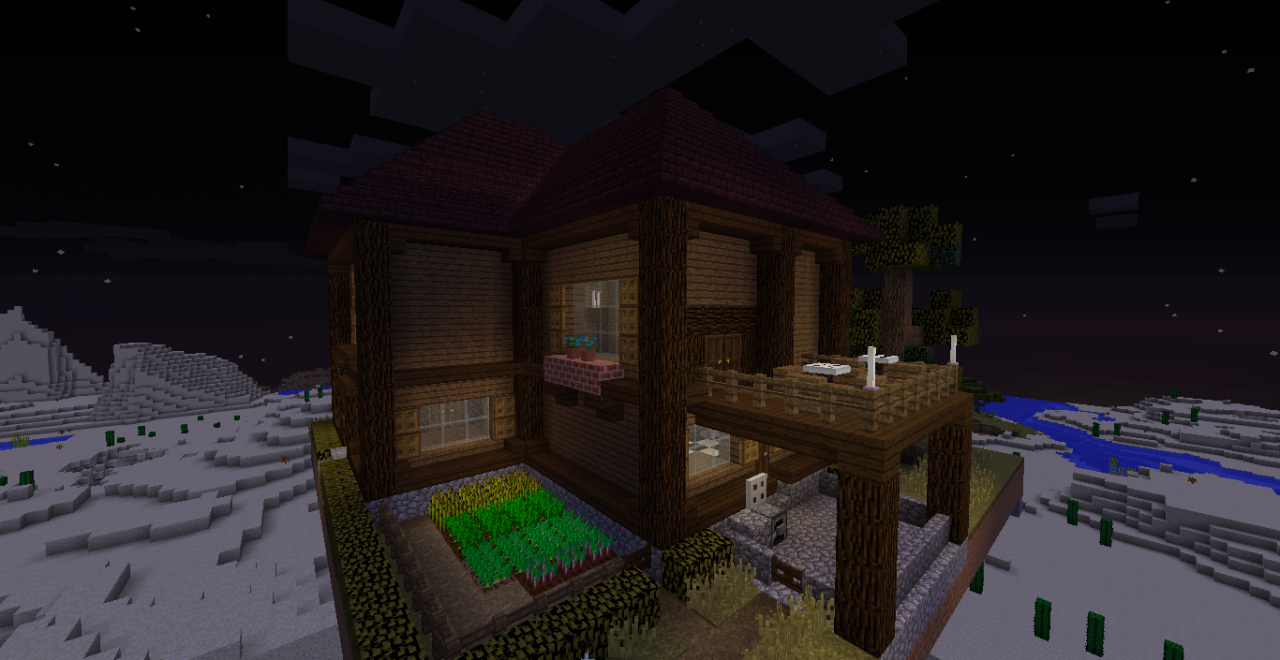
Large House
Small Desert Temple
*Small Oak House
Large Fountain
*Small Fountain
ClassyElm123 Pixel Art
Mojang Logo Pixel Art
Simple Tnt Cannon
Slime Block Tnt Cannon
Sound Troll Door
Small Car
Military Tank
*Brewing Station
Large House
Small Desert Temple
*Small Oak House
Large Fountain
*Small Fountain
ClassyElm123 Pixel Art
Mojang Logo Pixel Art
Simple Tnt Cannon
Slime Block Tnt Cannon
Sound Troll Door
Small Car
Military Tank
Part 2 Structures
Before reading, please note that this part requires part one to be installed.
* = Structure is in two parts
Buildings:
Gas Station
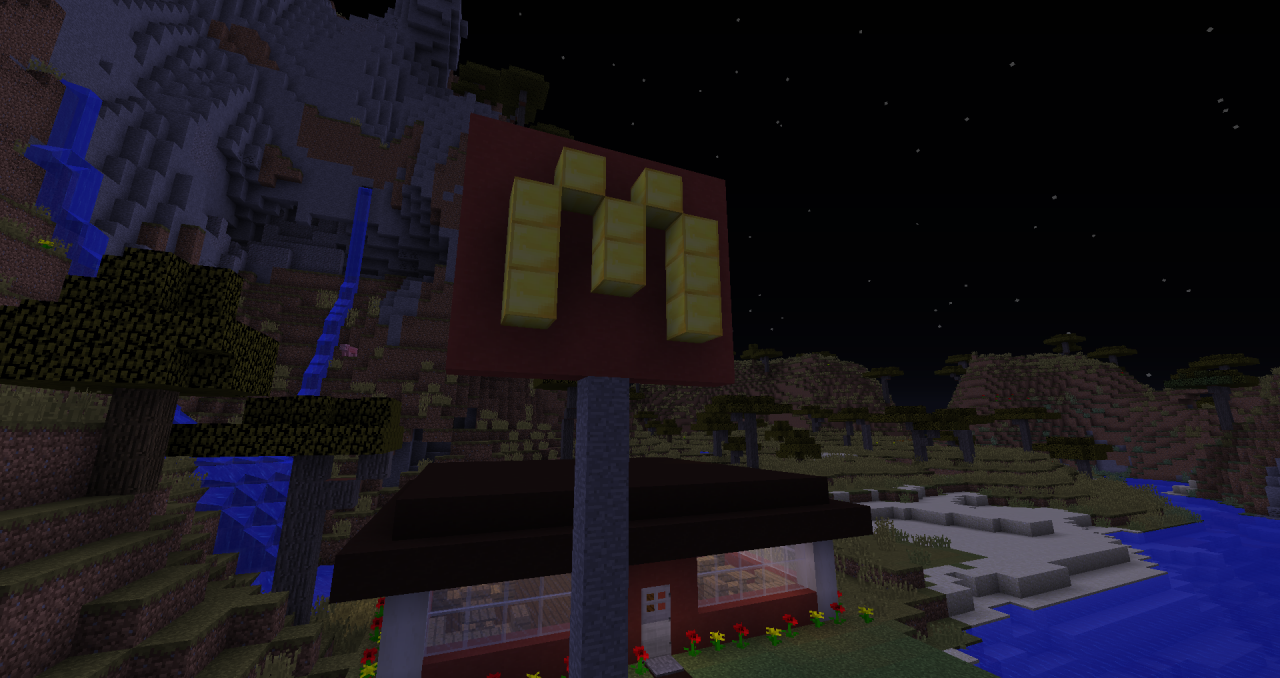
McDonald's Restaurant
Medium House
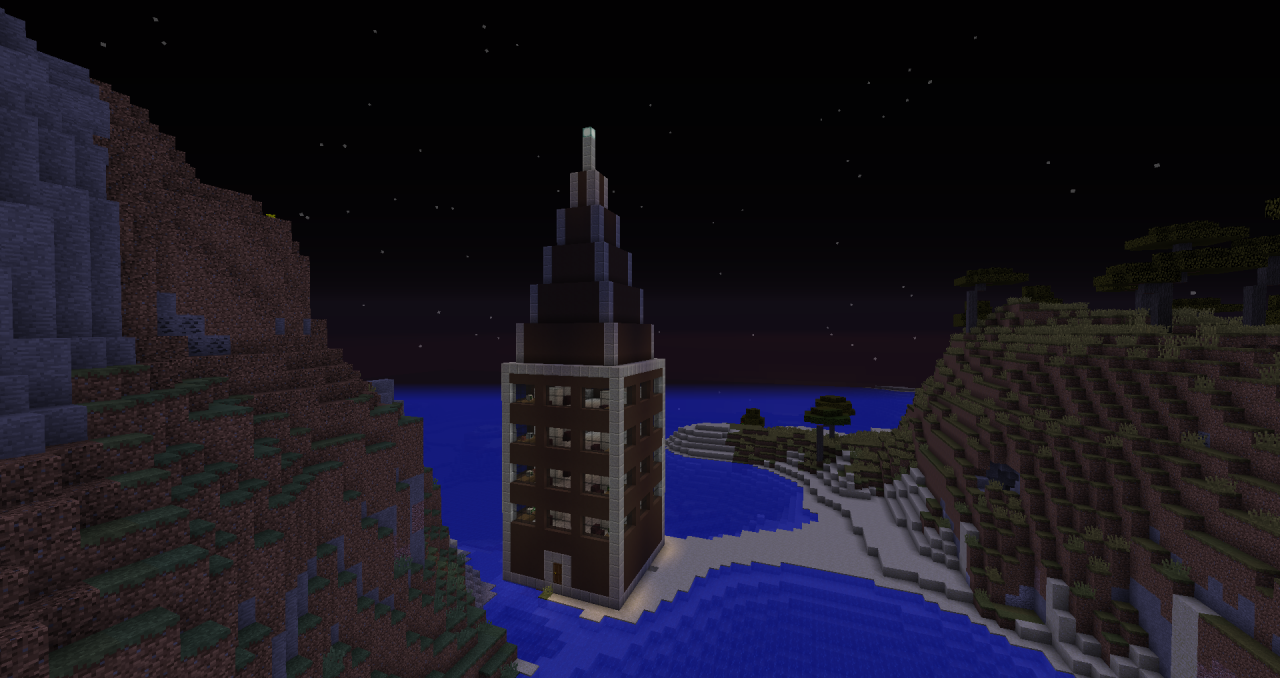
*Skyscraper (In two parts. When you spawn it, you'll see that there are two structure blocks, one where you spawned it and another thirty two blocks above the first. Activate both of the structure blocks to load the skyscraper.)
Small Fortress (Small Fort)
Decorations:
Small Acacia Tree
Small Birch Tree
Small Dark Oak Tree
Small Jungle Tree
Large Fountain II
Small Oak Tree
Random:
Mario Pixel Art
Vehicles:
Limousine
Semi Truck with Trailer
Small Helicopter
* = Structure is in two parts
Buildings:
Gas Station
McDonald's Restaurant
Medium House
*Skyscraper (In two parts. When you spawn it, you'll see that there are two structure blocks, one where you spawned it and another thirty two blocks above the first. Activate both of the structure blocks to load the skyscraper.)
Small Fortress (Small Fort)
Decorations:
Small Acacia Tree
Small Birch Tree
Small Dark Oak Tree
Small Jungle Tree
Large Fountain II
Small Oak Tree
Random:
Mario Pixel Art
Vehicles:
Limousine
Semi Truck with Trailer
Small Helicopter
Part 3 Structures
Buildings:
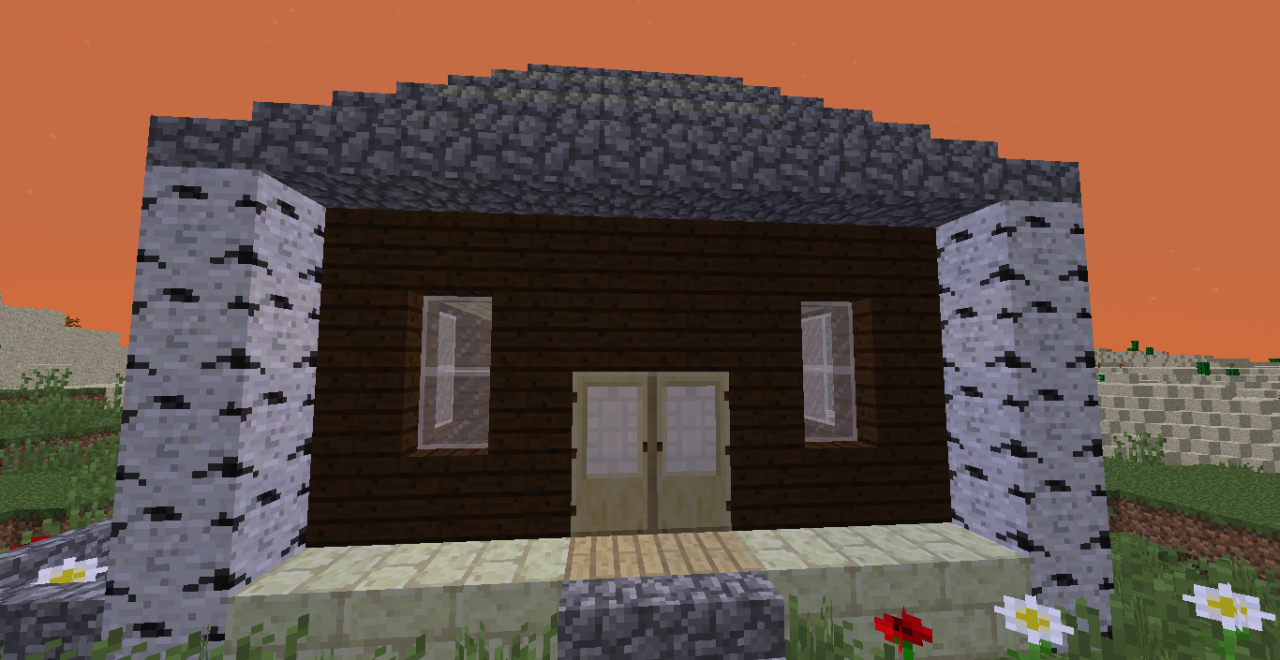
Small Birch House
Small Old Shack
Library
Mini-Mansion
Lighthouse
Huge Ice Castle (in 6 parts, made by Edelweiss133)
Small Automated Egg Collector
Small Variety Farm (has variety of crops)
Vehicles:
Garbage Truck
School Bus
Decorations:
Medium Christmas Tree
Courtyard
Netherbrick Fireplace
Sandstone Fireplace
Cobblestone Fireplace
Brick Fireplace
Stonebrick Fireplace
Golden Statue
Random:
Diamond Sword Pixel Art
Sheep Face Pixel Art
Small Birch House
Small Old Shack
Library
Mini-Mansion
Lighthouse
Huge Ice Castle (in 6 parts, made by Edelweiss133)
Small Automated Egg Collector
Small Variety Farm (has variety of crops)
Vehicles:
Garbage Truck
School Bus
Decorations:
Medium Christmas Tree
Courtyard
Netherbrick Fireplace
Sandstone Fireplace
Cobblestone Fireplace
Brick Fireplace
Stonebrick Fireplace
Golden Statue
Random:
Diamond Sword Pixel Art
Sheep Face Pixel Art
How to...
use:
Open your owner's manual and go to page 2 and 3 to obtain the spawn eggs used in this command creation.
apply downloaded structure folder in your Minecraft world:
To start, download the structures folder (under Commands & Download). Next, you'll want to get to your .minecraft folder. This can be a little challenging and can vary on some computers. The way I get to the folder is by going to my search bar and typing in "%appdata%". When you hit enter you should be met with a folder called "Roaming". In there you should find your .minecraft folder. Open it and under there open the "saves" folder. Find your world that has the one command creation installed on it and open the world folder. If you don't already have the "structures" folder in the world folder, create it and insert the .nbt files downloaded in this creation. If you do have the "structures" folder, then just place the .nbt files in the folder directly. You may have Minecraft open while inserting the .nbt files in at this time. In case any part of the explained tutorial doesn't make sense, look in the "Applying downloaded structures" folder found inside the downloaded structure folder or at the tutorial below. If you still need help, watch the first 4 minutes and 45 seconds of https://youtu.be/2UmPDfeqlDY.
*Make sure you follow the exact instructions. Do not use different caps than the caps that are present in the tutorial.
1. Search for the %appdata% file folder.

2. Open the .minecraft file folder.

3. Open the saves folder.

4. Open the world with the instant structures v.2 creation installed.

5. Create(if "structures" folder is not already there) and open the structures folder inside the world folder.

6. Paste the structure .nbt files into the "structures" file folder.

7. Play Minecraft. Good job! The one command creation is now ready to be used if you successfully placed the structures in the structures folder. If you run into problems or do not understand my tutorial, just ask for help and I'll help as soon as possible.
*Make sure you follow the exact instructions. Do not use different caps than the caps that are present in the tutorial.
1. Search for the %appdata% file folder.

2. Open the .minecraft file folder.

3. Open the saves folder.

4. Open the world with the instant structures v.2 creation installed.

5. Create(if "structures" folder is not already there) and open the structures folder inside the world folder.

6. Paste the structure .nbt files into the "structures" file folder.

7. Play Minecraft. Good job! The one command creation is now ready to be used if you successfully placed the structures in the structures folder. If you run into problems or do not understand my tutorial, just ask for help and I'll help as soon as possible.
change the spawned structure block settings:
If you've used some of the spawn eggs, you've probably noticed that the spawn eggs spawn structure blocks. This is to enable the player to change some settings before loading the structure. In creative mode, all you have to do is open the structure block settings and change the settings in there. Survival mode players are not able to open these displays though. Here's how players in survival mode can change the rotation or change the mirror style. Name papers(using an anvil) one of the following names based on what you want to do. The papers you name are not consumed when you use it.
Name a piece of paper one of the following:
-"Rotate 0": Will set the structure's rotation to 0 degrees. (Default)
-"Rotate 90": Will set the structure's rotation to 90 degrees.
-"Rotate 180": Will set the structure's rotation to 180 degrees.
-"Rotate 270": Will set the structure's rotation to 270 degrees.
-"Mirror: None": Sets the mirror style to none. (Default)
-"Mirror: Right-Left" or "Mirror: Left-Right": Sets the mirror style to left-right.
-"Mirror: Front-Back" or "Mirror: Back-Front": Sets the mirror style to front-back.
-"Load Structure": Loads the structure the paper is thrown on top of. Take note that structures can also be spawned using redstone signals.
A mirror is how the structure is reflected. This can be across the different axes (the x-axis, y-axis, and z-axis).
Using named papers:
Throw the named paper on top of the load structure block to change or load the structure.
Name a piece of paper one of the following:
-"Rotate 0": Will set the structure's rotation to 0 degrees. (Default)
-"Rotate 90": Will set the structure's rotation to 90 degrees.
-"Rotate 180": Will set the structure's rotation to 180 degrees.
-"Rotate 270": Will set the structure's rotation to 270 degrees.
-"Mirror: None": Sets the mirror style to none. (Default)
-"Mirror: Right-Left" or "Mirror: Left-Right": Sets the mirror style to left-right.
-"Mirror: Front-Back" or "Mirror: Back-Front": Sets the mirror style to front-back.
-"Load Structure": Loads the structure the paper is thrown on top of. Take note that structures can also be spawned using redstone signals.
A mirror is how the structure is reflected. This can be across the different axes (the x-axis, y-axis, and z-axis).
Using named papers:
Throw the named paper on top of the load structure block to change or load the structure.
load structures that spawn multiple structure blocks:
When you spawn structures such as the skyscraper, you'll notice that there are multiple structure blocks spawned instead of just one. Loading the structure is really easy. Just treat each structure block as an individual structure. For example, if you have the skyscraper structure blocks spawned, just throw the "Load Structure" paper on top of each structure block. If you rotate one structure block, make sure you rotate the other(s) as well. If you don't, the structures will be rotated incorrectly and not fit into each other like their supposed to.
Credits
Made by me
Used MrGarretto's 1.9 Command Combiner
JSON Creator for Minecraft (Owner's Manuals)
Builds by myself, Edelweiss133, and ADMR76
Used MrGarretto's 1.9 Command Combiner
JSON Creator for Minecraft (Owner's Manuals)
Builds by myself, Edelweiss133, and ADMR76
Command & Download
Part I
Command (Requires 1.10 or greater up to 1.12.2):
1.10: [url=pastebin.com/gK4bpHVB
]pastebin.com/gK4bpHVB
[/url] 1.11-1.12: http://pastebin.com/musWcn5J
Structure Files Download (Required for the One Command Creation to work): Download here
1.10: [url=pastebin.com/gK4bpHVB
]pastebin.com/gK4bpHVB
[/url] 1.11-1.12: http://pastebin.com/musWcn5J
Structure Files Download (Required for the One Command Creation to work): Download here
Part II
Part II as well as future parts require the installation of Part I, but do not necessarily need other parts installed to run correctly. For example, you do not need to have Part III installed in order for Part II.
to work, yet you do need Part I for Part II to work. Command (Requires 1.10 or greater, up to 1.12.2):
1.10 Command: [url=pastebin.com/4ML23EK6
]pastebin.com/4ML23EK6
[/url] 1.11-1.12 Command: http://pastebin.com/JXQyMTAL
Structure Files Download (Place these files in the "structures" folder in your saves folder from Part I): Download here
If you have any further questions, feel free to ask me.
to work, yet you do need Part I for Part II to work. Command (Requires 1.10 or greater, up to 1.12.2):
1.10 Command: [url=pastebin.com/4ML23EK6
]pastebin.com/4ML23EK6
[/url] 1.11-1.12 Command: http://pastebin.com/JXQyMTAL
Structure Files Download (Place these files in the "structures" folder in your saves folder from Part I): Download here
If you have any further questions, feel free to ask me.
Part III
This part does not need the installation of any other parts to work, but if you want to be able to load the structures in survival mode, you must have Part I installed. This part requires 1.10 or greater (up to 1.12.2). Please note, some future parts may not be compatible with all versions, so stay alert!
1.10 Command: http://pastebin.com/fkYq7jT7
1.11-1.12 Command: http://pastebin.com/zQKtPXWp
Structure Files Download (Works with all versions): https://www.dropbox.com/s/o65s4ntiez1fs4d/Instant%20Structures%20V.2%20Part%20III.zip?dl=0
If you have any other questions about the part or ideas for future parts, please just ask.
1.10 Command: http://pastebin.com/fkYq7jT7
1.11-1.12 Command: http://pastebin.com/zQKtPXWp
Structure Files Download (Works with all versions): https://www.dropbox.com/s/o65s4ntiez1fs4d/Instant%20Structures%20V.2%20Part%20III.zip?dl=0
If you have any other questions about the part or ideas for future parts, please just ask.
Enjoy! If you've got any ideas for new structures, just post the idea in the comments.
7 Update Logs
Update #7 : by ClassyElm 12/03/2016 8:41:03 pmDecember 4, 2016 @ 1:41 am UTC
It's finally here! You can now use Part III! I hope you enjoy this 20,000+ views celebration! Please don't be afraid to suggest ideas for future parts because I am always looking for new ideas. Posted on: 12/3/2016
LOAD MORE LOGS
More like this
 Instant Structures One CommandRedstone Device Map
 ClassyElm
8/25/16 4:06
• posted 10/3/15 12:06
6.5kx 12
ClassyElm
8/25/16 4:06
• posted 10/3/15 12:06
6.5kx 12
 One Command Structures! 1.8.4Redstone Device Map
 Pikachu1181
4/30/15 5:43
• posted 4/27/15 6:27
1.6k 4x 831
Pikachu1181
4/30/15 5:43
• posted 4/27/15 6:27
1.6k 4x 831![[1.11.2] Instant Structures One Command Minecraft Map & Project](https://static.planetminecraft.com/files/resource_media/screenshot/1706/2017-02-10_18271010846798_thumb.jpg)
 Instant Setup UHC v1.2 NOW WITH ONE COMMANDBLOCK!Redstone Device Map
 Halo_Master_1801
•3/18/15 1:07
724 25x 81
Halo_Master_1801
•3/18/15 1:07
724 25x 81
 Sardonyx
 Stelath
3716100
2








 cappy7

 cadbane86140

 SciSyf
 User6022081G

 SzymoQwertyMC

Have something to say?
Unfortunately, this command creation is only compatible up to 1.12.2. The command syntax changed in 1.13, which broke everything in this command creation. While I have considered updating the project, I would need to remake it from the ground up, probably using a data pack instead.
I updated the project description to reflect compatible versions. Sorry for any inconveniences.
1. I have a typo in a command.
2. I forgot to include that specific structure file in the structure files download.
3. You don't have the structure files properly placed in your world file.
It is possible that there is a different problem, but those are the most likely.
??