


• 7/9/23 7:36 am
- 8.8k views • 1 today
- save_alt 1.6k downloads • 1 today
- Game Version
- Minecraft 1.21
- Resolution
- 16x
- Progress
- 100% complete
- Changes include
- GUI
- Misc

26
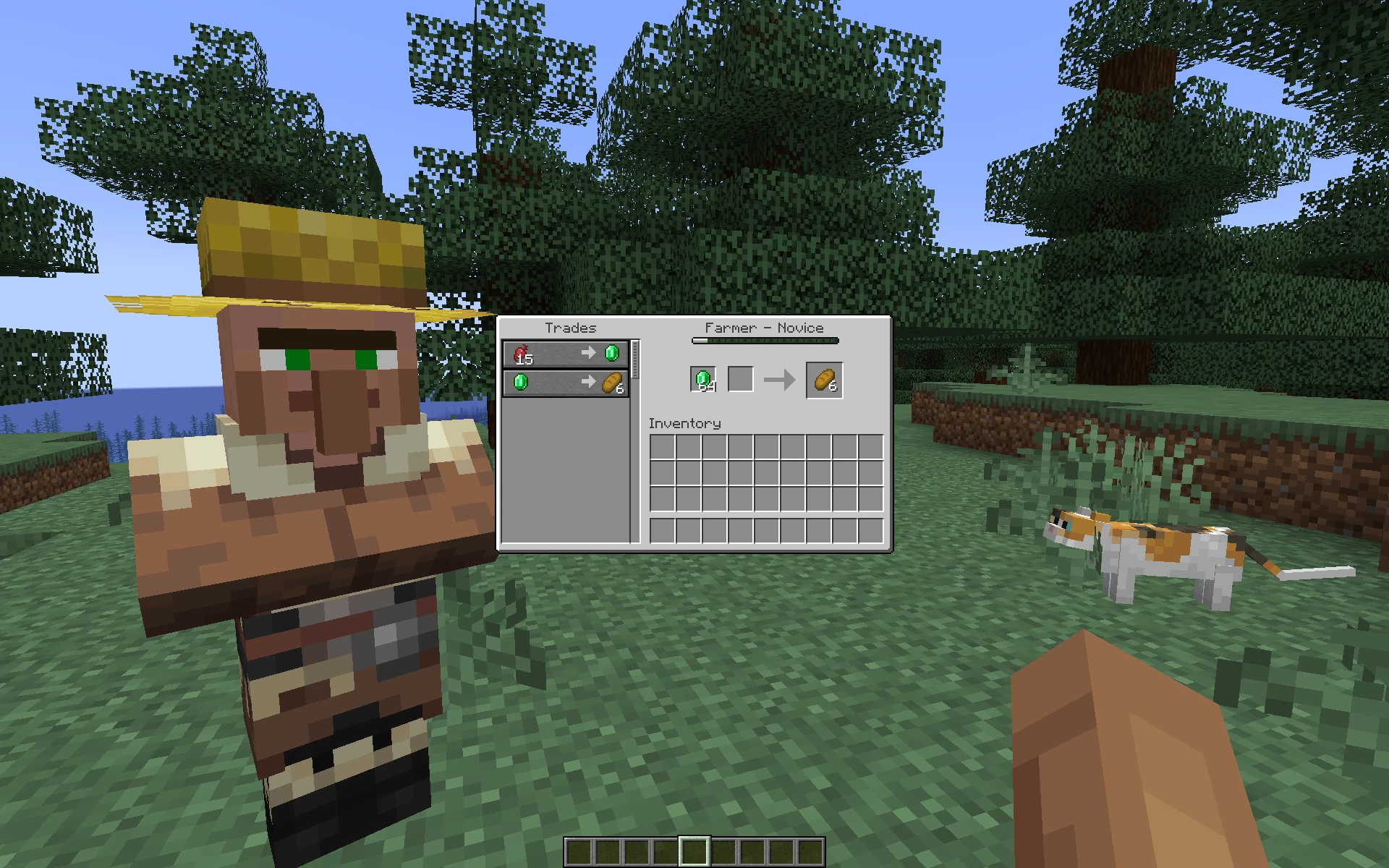
No dark background overlay from inventories and pause menu
This resource pack removes dark background overlay from all different type of inventories and pause menu.
Afaik I am the first one who made this without using any mods.
Versions: 1.17.1 — 1.21+
For the versions above 1.20.4 pause menu will not be affected because mojang changed the overlay to a different one, with blur, which you can remove in vanilla video settings.
Works with both Optifine and Sodium.
Note:
You can also customize transparency and color of the dark background overlay to whatever you want. To do that, open a file called rendertype_gui.vsh (if you are on versions 1.17.1 – 1.19.4, open the file position_color.vsh instead), go to line 18 and change the value of vertexColor.a to whatever you want. 0 is fully transparent (it is set by default), 1 is the opposite, 0.5 is 50% transparent. To change the color of the overlay, delete the whole line 18 and change it to vertexColor = vec4(0, 0, 0, 0);, and then change zeros to values you want. The first zero is for red, the second is for blue, the third is for green, and the fourth is for alpha aka transparency. You can pick a color and get corresponding values for it on this website.
More like this
 Basic Inventory (Dark Mode)16x Minecraft 1.20 Other Texture Pack
 fleurpetals
•5/22/23 2:38
8.7k 2.6kx 1106
fleurpetals
•5/22/23 2:38
8.7k 2.6kx 1106 Overlay ULTIMATE!16x Minecraft 1.18 Other Texture Pack
 Impudentsquid
•11/23/22 3:55
7.1k 1k 2x 921
Impudentsquid
•11/23/22 3:55
7.1k 1k 2x 921 Psyduck Inventory (Pokemon) *DARK MODE*16x Minecraft 1.21.8 Other Texture Pack
 KnorxMC
•3/12/26 12:50
1.9k 769x 113
KnorxMC
•3/12/26 12:50
1.9k 769x 113![Open Inventory [Concept] Minecraft Texture Pack](https://static.planetminecraft.com/files/image/minecraft/texture-pack/2023/388/16888613_s.jpg) Open Inventory [Concept]16x Minecraft 1.20 Other Texture Pack
Open Inventory [Concept]16x Minecraft 1.20 Other Texture Pack Mineralium
•6/22/23 12:02
1.9k 210 1x 1137
Mineralium
•6/22/23 12:02
1.9k 210 1x 1137![Separate Inventories [Concept] Minecraft Texture Pack](https://static.planetminecraft.com/files/image/minecraft/texture-pack/2025/864/18456536_s.jpg) Separate Inventories [Concept]16x Minecraft 1.21.4 Other Texture PackMineralium
•1/1/25 3:46
1.1k 164x 187
Separate Inventories [Concept]16x Minecraft 1.21.4 Other Texture PackMineralium
•1/1/25 3:46
1.1k 164x 187
5999118
4




 SeattleBones
 _Dusky_
 Shad0strikerX34



 Tsikolas
 Crittanyofdettany
 Animun4ik
 Fllz
Fllz
 _lun4rrz
Have something to say?
1. Open the file from the archive along this path assets/minecraft/shaders/core/rendertype_gui.vsh
2. We are looking for a line at the very bottom with the following content "vertexColor.a = 0"
3. Change the value "0" to whatever you want
"1" - the background will be completely black;
"0" - the background will be completely transparent;
4. You can set any numbers, for example, 0.5, 0.2367, 0.96, etc.
You can also change the color of the background by changing values of vertexColor.r, vertexColor.g and vertexColor.b for red, green, and blue.