
• 2/24/15 1:48 pm
- 4.9k views • 0 today
Added CreditParil, Ample
- 31
- 8
- 13

568
-PLEASE NOTE-
you will need MCSkin3D by Paril in order to do any of this.
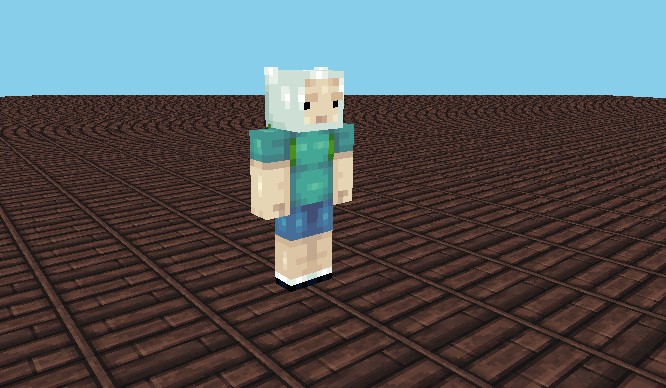
Alright, this is a tutorial on how to make this:

Look like this:

----LETS GET STARTED SHALL WE?----
Step 1: Download MCSkin3D
Step 2: Run it at least once, to make sure everything works. Be sure to close it and not to open it until this process is done.
Step 3: Open the folder that you found the "MCSkin3D" application in. It will be in either your downloads, or wherever you moved it. It should look like this.
Step 4: Find the texture you want to replace the bottom layer. You can either make your own, or take it from a resource pack.
Step 5: Copy it to your desktop, and rename it "grass"
Step 6: Either move or delete the "grass" image from your MCSkin3D folder. It's this one
Step 7: Copy the renamed texture into your MCSkin3D folder, and run the program.
Voila, enjoy.
-REMEMBER, IF YOU DIDN'T MAKE THE TEXTURE, DON"T UPLOAD IT SAYING YOU DID-
you will need MCSkin3D by Paril in order to do any of this.
Alright, this is a tutorial on how to make this:
Look like this:
----LETS GET STARTED SHALL WE?----
Step 1: Download MCSkin3D
Step 2: Run it at least once, to make sure everything works. Be sure to close it and not to open it until this process is done.
Step 3: Open the folder that you found the "MCSkin3D" application in. It will be in either your downloads, or wherever you moved it. It should look like this.
Step 4: Find the texture you want to replace the bottom layer. You can either make your own, or take it from a resource pack.
Step 5: Copy it to your desktop, and rename it "grass"
Step 6: Either move or delete the "grass" image from your MCSkin3D folder. It's this one
Step 7: Copy the renamed texture into your MCSkin3D folder, and run the program.
Voila, enjoy.
-REMEMBER, IF YOU DIDN'T MAKE THE TEXTURE, DON"T UPLOAD IT SAYING YOU DID-
More like this

 discoo
 madisonjack01
 Ludicrous
 gab51299
3249170
6




 AntHills



 PlanetZedna
 MystSpaTimeTrav
 Sidga420


Have something to say?
But m8, where'd you get that wood texture? ;o